
Computer hardware is the collection of physical components that make a computer function, including the processor, memory, storage, graphics card, motherboard, power supply, cooling system, and peripherals. This computer hardware guide explains every major component: what each part does, how the parts connect, and how to choose each component for a specific build. The Computer Hardware cluster behind this page covers 62 detailed articles across 8 component categories, from CPU architecture and RAM standards to storage drives, graphics cards, motherboards, power supplies, cooling, and input devices.
Each linked article answers one focused question with specifications, comparisons, and selection criteria. Readers building a first computer, upgrading a single part, or learning how a system fits together will find the relevant component section below, with direct links to every in-depth article in the cluster.
What Is Computer Hardware?
Computer hardware is the set of tangible electronic and mechanical parts that store, process, and move data inside a computer – as opposed to software, the instructions the hardware executes (see hardware vs software). Computer hardware divides into eight functional categories.
The processor, or CPU, performs the calculations and coordinates the rest of the system. Memory, in the form of RAM, holds the data the CPU is actively using. Storage drives retain files and programs permanently, and the graphics card renders images while accelerating parallel workloads such as games and AI models.
Four supporting categories complete the set. The motherboard connects every part and routes data and power between them. The power supply converts wall AC into the regulated DC voltages the components use, cooling hardware removes the heat those components generate, and peripherals such as the keyboard, mouse, and monitor handle input and output.
CPU
RAM
GPU
Storage
Motherboard
PSU
Processors (CPU)
A processor, or CPU, is the component that executes program instructions and coordinates the rest of the system. CPU selection determines single-thread speed, core count, and platform compatibility. As of 2026, the current desktop families are Intel Core Ultra 200S processors on socket LGA1851 and AMD Ryzen 9000 processors on socket AM5, and AMD has confirmed AM5 support through at least 2027. The 10 articles below cover processor architecture, brand and instruction-set comparisons, performance attributes, and selection by workload.
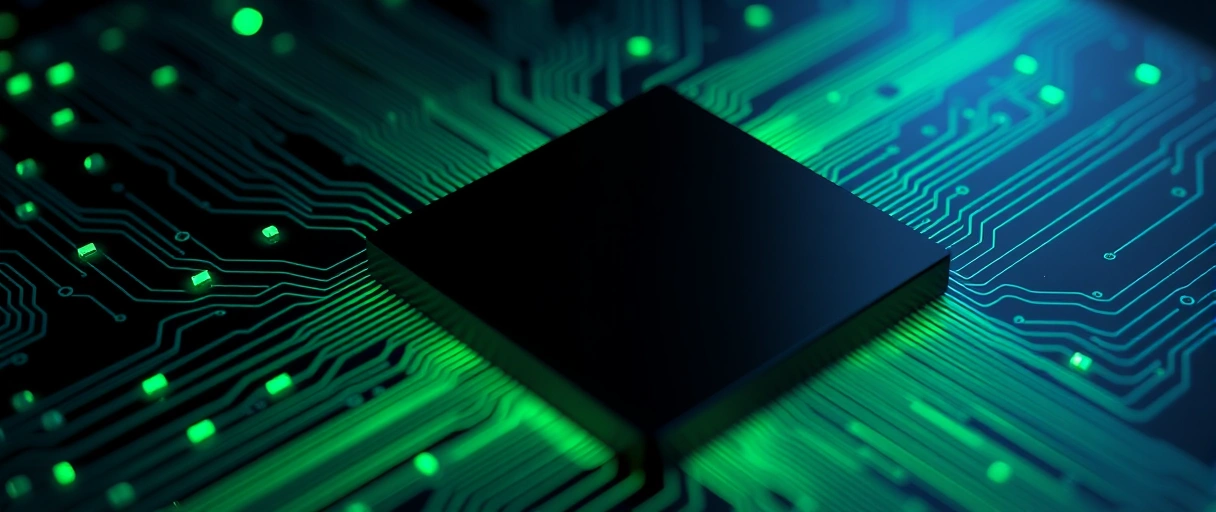
- CPU architecture: the control unit, ALU, registers, and pipelines inside a processor
- Intel vs AMD: how the two CPU brands compare on gaming, productivity, and value
- ARM vs x86: the RISC and CISC instruction-set difference and where each is used
- CPU cores and threads: how cores, threads, and multithreading affect performance
- CPU clock speed: what GHz, base clocks, and boost clocks measure
- CPU cache: how L1, L2, and L3 cache reduce memory latency
- CPU generations: how Intel Core and AMD Ryzen model names decode
- how to overclock a CPU: the BIOS steps, stress testing, and thermal limits
- best CPUs for gaming: the processor tiers and traits that drive frame rates
- best CPUs for workstations: core count and memory bandwidth for heavy workloads
Memory (RAM)
Random access memory, or RAM, is the volatile working memory that holds data the CPU is actively using. Capacity, speed, and channel configuration all affect multitasking and responsiveness. The DDR5 standard itself is still advancing: JEDEC’s JESD79-5C update, published in April 2024, raised supported DDR5 data rates from 6400 MT/s to 8800 MT/s and added Per-Row Activation Counting to protect data integrity. The 8 articles below explain how memory works, the DDR standards, timing specifications, and installation.
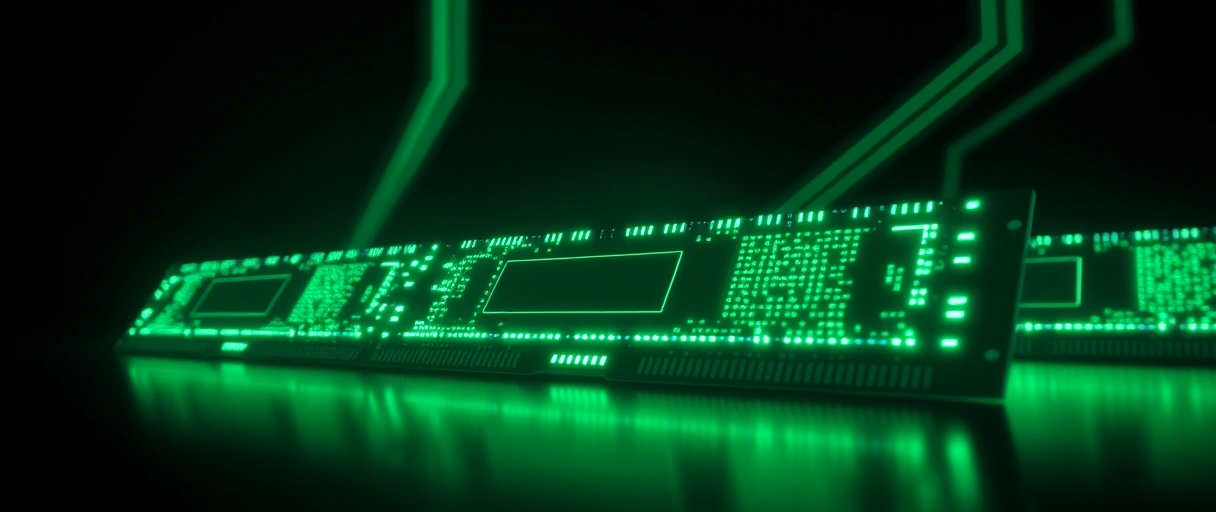
- how RAM works: DRAM cells, refresh, and the memory controller
- DDR4 vs DDR5: data rate, latency, power, and platform differences
- RAM speed and timings: MT/s versus MHz and how CAS latency works
- how much RAM you need: 8GB, 16GB, 32GB, and 64GB use cases
- single vs dual channel memory: how channels double bandwidth
- ECC vs non-ECC RAM: error correction and who needs it
- how to install RAM: the correct slots and seating steps
- RAM form factors: DIMM, SO-DIMM, and CAMM2 modules
Storage Drives
A storage drive is the hardware that retains data permanently, even when the computer is powered off. Storage selection balances speed, capacity, endurance, and cost across two main technologies. The comparison of HDD vs SSD covers speed, price, lifespan, and reliability, while the explainers on how SSDs work and how hard drives work go inside each technology: NAND flash, controllers, and wear leveling on one side, and platters, heads, actuators, and RPM on the other.
Interface questions come next. The NVMe vs SATA SSD comparison explains the protocol speed difference, and M.2 vs SATA clarifies why M.2 is a form factor while SATA is an interface. For multi-drive setups, the guide to RAID levels compares RAID 0, 1, 5, 6, and 10 on redundancy and capacity, and external vs internal storage weighs interface speed, portability, and backup use. Readers picking a single drive can start with how to choose a storage drive, which matches type, capacity, and endurance to the workload.

Graphics Cards (GPU)
Graphics performance sets gaming frame rates, resolution headroom, and creative workload speed. A graphics card, or GPU, is the component that renders images and accelerates parallel computation. The 9 articles below explain GPU operation, brand and feature comparisons, video memory, and selection.
- how GPUs work: parallel cores and the rendering pipeline
- GPU architecture: streaming multiprocessors, RT cores, and tensor cores
- Nvidia vs AMD GPUs: raster, ray tracing, upscaling, and value
- integrated vs dedicated graphics: shared memory versus dedicated VRAM
- VRAM: how much video memory each resolution needs
- ray tracing: how real-time light simulation works and its cost
- how to choose a graphics card: matching GPU tier to resolution and refresh
- best GPUs for gaming: representative cards by resolution tier
- GPU cooling: open-air, blower, and liquid GPU coolers
Motherboards
A motherboard is the main circuit board that connects and routes data and power between every component. The board sets the socket, chipset, memory support, and expansion capacity of a build. Coverage starts with how motherboards work, which explains the chipset, buses, and connections, and continues with motherboard form factors for the ATX, Micro-ATX, and Mini-ITX sizes.
Platform detail follows. The guides to motherboard chipsets and CPU sockets decode the Intel and AMD chipset tiers and the LGA, PGA, and BGA socket types. The motherboard VRM article explains how power is regulated and delivered to the CPU, and the PCIe slots article covers lanes, generations, and bandwidth. That bandwidth doubles with each generation: PCI-SIG released the PCIe 7.0 specification in June 2025 at 128 GT/s per lane, which works out to as much as 512 GB/s of bidirectional bandwidth in an x16 slot. Buyers can finish with how to choose a motherboard, which matches socket, chipset, and features to the rest of the build.
Power Supplies (PSU)
A power supply, or PSU, is the component that converts AC wall power into the regulated DC voltages the computer uses. Wattage, efficiency, and connectors determine system stability and headroom. Efficiency is graded under the 80 PLUS program: a Bronze unit must reach 85% efficiency at 50% load on 115V input, while a Titanium unit must reach 94% at the same load point.
Coverage starts with how power supplies work, which explains AC-to-DC conversion and voltage rails, and PSU wattage, which calculates how many watts a system needs. The 80 PLUS certification article breaks down the Bronze-to-Titanium tiers in full, the modular vs non-modular PSU comparison weighs cabling, airflow, and cost, and PSU connectors identifies the 24-pin, EPS, PCIe, and 12VHPWR plugs. Buyers can finish with how to choose a power supply, which covers wattage, efficiency, and quality indicators.
Cooling Systems
A cooling system is the hardware that removes heat from components to prevent thermal throttling. Cooling choice affects temperatures, noise, and sustained performance. The core comparison is air cooling vs liquid cooling, which weighs performance, noise, and reliability, supported by how CPU coolers work on heat pipes, fins, and heat transfer, and AIO vs custom water cooling on closed-loop versus open-loop systems. For most builds, our recommendation is a tower air cooler unless the case layout or a high-wattage CPU justifies liquid cooling.
Case-level airflow supports every cooler. The case fans article compares airflow and static-pressure fans and their placement, and the PC airflow guide explains intake, exhaust, and air pressure balance. Practical fixes live in how to apply thermal paste and how to lower CPU temperature.
Peripherals and Connectivity
A peripheral is an external device that provides input to or output from the computer, including keyboards, mice, and monitors. Peripheral and port standards determine compatibility, latency, and display quality. On the input side, mechanical vs membrane keyboards compares switch mechanisms, feel, and durability, and how computer mice work explains optical and laser sensors, DPI, and polling rate. For displays, monitor panel types compares IPS, VA, TN, and OLED, while monitor refresh rate covers the difference between 60Hz, 144Hz, and 240Hz.
Connection standards round out the category. The guide to wired vs wireless peripherals weighs latency, battery, and reliability, the overview of types of computer ports covers USB, HDMI, DisplayPort, and Thunderbolt, and the USB standards article decodes USB 2.0 through USB4 speeds and naming.
How the Hardware Components Connect
Every component connects through the motherboard, which routes data over buses and distributes power from the PSU. The CPU reaches RAM through its integrated memory controller. The graphics card and NVMe storage connect to the CPU over PCIe lanes, and peripherals reach the system through USB and the other rear-panel ports.
So compatibility depends on socket, chipset, and lane allocation – confirm the CPU socket fits the board, the PSU has the right wattage and connectors, and the cooler clears the case and memory.
How to Plan a Computer Hardware Build
A build starts with the intended workload, which sets the budget priority for each component. Gaming favours the graphics card, a workstation favours CPU cores and memory, and an office build spreads the budget across balanced mid-range parts. Then select parts in dependency order:
- Set a budget and purpose. Gaming, editing, and office builds prioritise different parts.
- Choose the CPU and GPU first. They set the performance ceiling for the whole system.
- Match the motherboard. Socket, chipset, and RAM type must fit the CPU.
- Size the PSU and cooling. Cover the GPU and CPU draw with headroom, then plan airflow.
- Check clearances and compatibility. GPU length, cooler height, and case size before buying.
Selecting parts in this order – CPU and its socket, then motherboard, then GPU and the matching PSU, then the case that constrains size – avoids the compatibility conflicts that force a return or a redesign. The theCoreiTech team recommends writing the complete parts list before buying anything, since the case, cooler, and power supply choices all depend on the CPU and GPU pairing.
Component Budget Priority by Build Type
The recommended budget allocation changes with the primary workload, as shown below.
| Build type | Highest priority | Second priority | Lower priority |
|---|---|---|---|
| Gaming PC | Graphics card | CPU and fast RAM | Storage capacity |
| Content creation | CPU cores and RAM | Storage speed and capacity | Mid-range GPU |
| Office and study | Balanced CPU and SSD | Adequate RAM (16GB) | Integrated graphics |
| Server or NAS | Storage and ECC RAM | Reliable PSU | Modest CPU and no GPU |
How to Check Computer Hardware Compatibility
Hardware compatibility depends on matching the socket, chipset, memory standard, power connectors, and physical dimensions across components. A compatibility check confirms each interface before purchase. The checklist below covers the connections that most often cause a build to fail.
- Confirm the CPU socket matches the motherboard socket, since an LGA1700 processor does not fit an AM5 board.
- Verify the motherboard supports the chosen memory standard, because DDR4 and DDR5 modules are not interchangeable.
- Match the power supply wattage and connectors to the graphics card, including the 12VHPWR connector on high-power models.
- Check that the case clears the graphics card length, the CPU cooler height, and any radiator size.
- Confirm the storage interface, since an M.2 slot may share PCIe lanes with a SATA port or a second slot.
When to Upgrade Computer Hardware
An upgrade is justified when a single component limits performance in your main task while the rest stays adequate. Identify the limiter first, so you do not replace the wrong part. Slow multitasking usually points to more RAM. Long boot and load times disappear when a hard drive is swapped for an SSD, and low frame rates call for a new graphics card, provided the CPU is not the bottleneck. A full platform change, meaning the CPU, motherboard, and memory together, is only warranted when the socket no longer supports current processors.
Upgrade timing also depends on platform longevity: a socket with a long support window lets you swap just the processor later, while a socket near the end of its life favours a fresh build over a partial upgrade.
On a typical gaming build the graphics card takes the largest share of the budget, followed by the CPU. Our recommendation is to hold the GPU near a third of the total and resist trimming the power supply to fund it.
Last Thoughts on Computer Hardware
Computer hardware determines what a computer can do, how fast it performs, and how long it remains capable. Each of the 8 component categories (processor, memory, storage, graphics, motherboard, power supply, cooling, and peripherals) contributes a distinct function, and a balanced system matches every part to the intended workload.
Key Takeaways:
- Computer hardware divides into 8 categories: CPU, RAM, storage, GPU, motherboard, PSU, cooling, and peripherals.
- The CPU executes instructions, while RAM holds the data the CPU is actively processing.
- Storage retains data permanently, with SSDs offering far higher speed than mechanical hard drives.
- The motherboard sets compatibility through its socket, chipset, and PCIe lane allocation.
- The power supply must deliver adequate wattage with the correct connectors for the CPU and GPU.
- Cooling capacity determines sustained performance by preventing thermal throttling.
The 62 articles linked above examine each component in depth, from internal operation to brand comparisons and selection criteria. Readers can move from this hub to any component section to research a single upgrade or to plan a complete build, then return here to connect the parts into a working whole.
Frequently Asked Questions (FAQs)
What are the main components of computer hardware?
The main components are the CPU, RAM, storage drive, graphics card, motherboard, power supply, cooling system, and peripherals such as the keyboard, mouse, and monitor.
What is the difference between hardware and software?
Hardware is the physical parts of a computer that process and store data. Software is the set of instructions that runs on the hardware to perform tasks.
Which computer hardware component is most important?
No single component is most important. The CPU, RAM, storage, and motherboard each perform a distinct function, and a weak part in any one limits overall system performance.
What hardware do I need to build a computer?
A computer build requires a CPU, motherboard, RAM, storage drive, power supply, case, and cooling. A dedicated graphics card is required for gaming or graphics work.
How do computer hardware components connect?
Components connect through the motherboard, which routes data over buses and PCIe lanes and distributes power from the power supply to each part.
About the author

Nizam Ud DeenFounder and Tech Blogger
Muhammad Nizam Ud Deen Usman is the founder of theCoreiTech and the author of The Local SEO Cosmos. He has worked in search since 2014 as an SEO consultant for eCommerce stores and local businesses, specialising in eCommerce SEO, local SEO and technical SEO, and runs SEO Academy and the SEO Community from Multan, Pakistan. He also founded ORM Digital Solutions, a digital agency serving medium and large businesses, and holds a degree from the University of Education, Lahore (Multan Campus). Plerdy lists him among its Best 20+ SEO Experts in Pakistan. Nizam started theCoreiTech in 2012 to make computers easier to understand and use for everyone. More of his work is at nizamuddeen.com.
