
USB standards define the data speeds, connectors, and power capabilities of the Universal Serial Bus that connects most computer peripherals. A standard sets the maximum transfer speed and feature set, from USB 2.0 at 480 Mbps to USB4 Version 2.0 at 80 Gbps – and the naming has changed repeatedly because the USB-IF renamed earlier standards, which is why one speed carries several names.
What Are USB Standards?
USB standards are the specifications, published by the USB Implementers Forum (USB-IF), that set the speed, power, and features of a USB connection – independent of the connector shape.
- They define the maximum data rate, power delivery, and signaling protocol.
- The line-up: USB 1.1, USB 2.0, the USB 3.x family, USB4, and USB4 Version 2.0 – each raising the ceiling.
- Standard vs connector: the standard is the protocol, the connector is the physical plug. The same USB-C port can run any modern standard, so the shape does not reveal the speed (see types of computer ports).
What Are the USB Speeds From USB 2.0 to USB4?
USB speeds rise with each generation: USB 2.0 reaches 480 Mbps, USB 3.2 Gen 1 reaches 5 Gbps, Gen 2 reaches 10 Gbps, Gen 2×2 reaches 20 Gbps, USB4 reaches 40 Gbps, and USB4 Version 2.0 reaches 80 Gbps (released by the USB-IF in September 2025, with a 120 Gbps asymmetric mode). Each figure is the raw signaling rate; real throughput runs lower after overhead.
- USB 2.0 reaches 480 Mbps, sufficient for keyboards, mice, printers, and other low-bandwidth peripherals.
- USB 3.2 Gen 1 reaches 5 Gbps, the first SuperSpeed tier, originally named USB 3.0 and later USB 3.1 Gen 1.
- USB 3.2 Gen 2 reaches 10 Gbps, doubling Gen 1 and originally named USB 3.1 Gen 2.
- USB 3.2 Gen 2×2 reaches 20 Gbps, using two 10 Gbps lanes over a USB-C connector only.
- USB4 reaches 20 or 40 Gbps, tunneling DisplayPort and PCIe over a USB-C connector.
- USB4 Version 2.0 reaches 80 Gbps, the current top speed, with an asymmetric mode reaching 120 Gbps in one direction.
See what each speed means for a real file copy – pick a size and a standard:
Real transfers are capped by the slower of the USB link and the drive - a SATA SSD (~550 MB/s) or hard drive (~150 MB/s) is often the real bottleneck. This estimates the USB ceiling at ~80% efficiency.
Why Is the USB 3.2 Naming So Confusing?
The USB 3.2 naming is confusing because the USB-IF renamed the same speeds twice – USB 3.0 became USB 3.1 Gen 1 in 2013, then USB 3.2 Gen 1 in 2017, so the original 5 Gbps standard carries three names for one identical speed.

- 5 Gbps was USB 3.0, then USB 3.1 Gen 1, then USB 3.2 Gen 1, now marketed as USB 5Gbps (SuperSpeed).
- 10 Gbps was USB 3.1 Gen 2, then USB 3.2 Gen 2, now marketed as USB 10Gbps (SuperSpeed+).
- 20 Gbps is USB 3.2 Gen 2×2, now marketed as USB 20Gbps, using two lanes over USB-C.
The USB-IF now recommends speed-based marketing names (USB 5Gbps, USB 10Gbps, USB 20Gbps) to replace the Gen labels – the cleanest way to read a port’s real speed.
What Is the Difference Between USB Connectors and Standards?
A USB connector and a USB standard are separate specs that are often confused: the connector is the physical plug shape (Type-A, Type-B, Micro-USB, Type-C), while the standard is the speed and protocol – so the shape does not determine the speed.
- Type-A is the rectangular host plug, found on desktops and chargers and not reversible.
- Type-B is the square device plug, used on printers and older external drives.
- Micro-USB is the small device plug, common on older phones and accessories before USB-C.
- Type-C is the reversible modern plug, carrying any current standard plus power and video.
A USB-C connector can run USB 2.0 at 480 Mbps or USB4 at 40 Gbps, so two identical-looking USB-C ports can differ greatly – the device label or icon reveals the speed, not the plug.


What Is USB-C Power Delivery?
USB-C Power Delivery (USB PD) is a spec that negotiates voltage and current over USB-C to deliver high power for charging:
- Up to 240 W under USB PD 3.1 (Extended Power Range, voltages up to 48 V) – earlier profiles capped at 100 W.
- It negotiates a power contract between source and device, so one charger powers a phone at low wattage and a laptop at high wattage.
- One cable replaces many: a single USB-C charger can stand in for several proprietary laptop adapters.
What Is USB-C Alt Mode?
USB-C Alternate Mode reroutes some of the connector’s pins to carry non-USB signals such as video:
- DisplayPort Alt Mode (defined with VESA) sends a native DisplayPort video signal over USB-C to a monitor or dock.
- Thunderbolt over USB-C (contributed by Intel) tunnels DisplayPort and PCIe at 40 Gbps and higher.
- It is why one USB-C cable carries data, video, and power to a dock at once – but only if the device and cable implement it.
Is USB Backward Compatible?
USB is backward compatible across standards and most connectors – but the connection runs at the slower of the two:
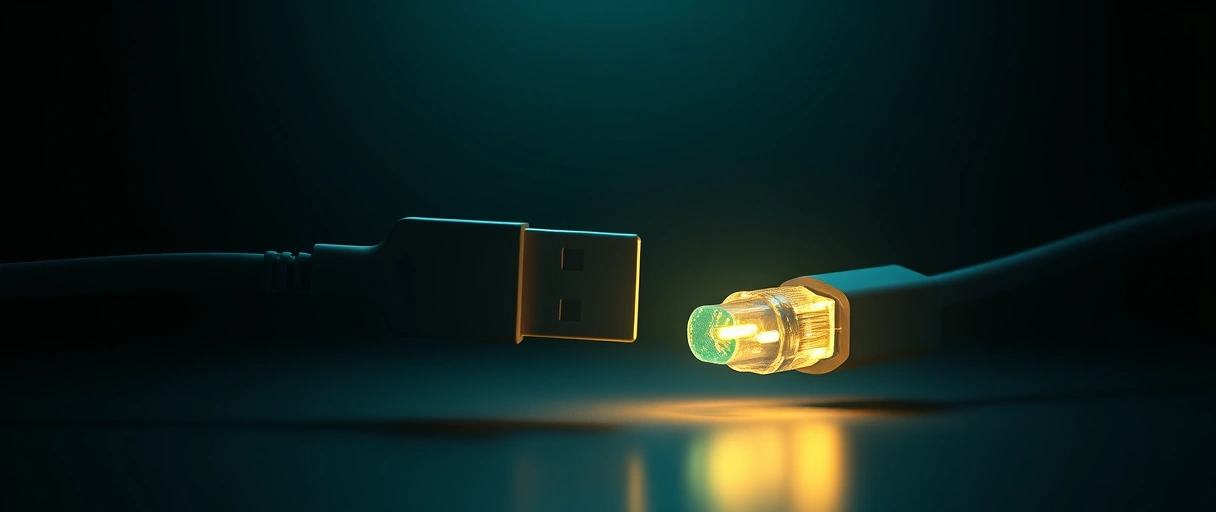
- Slower wins: a USB 3.2 flash drive in a USB 2.0 port operates at 480 Mbps.
- Type-A and Type-B stay physically compatible across USB 2.0 and 3.x – the newer plugs add pins without removing the original ones.
- USB-C needs an adapter to connect to Type-A or Type-B, since the connector shape changed.
USB Standards Comparison Table
The table maps each USB standard to its marketing name and maximum speed:
| Standard | Marketing Name | Maximum Speed | Connector |
|---|---|---|---|
| USB 2.0 | Hi-Speed USB | 480 Mbps | Type-A, Type-B, Micro, Type-C |
| USB 3.2 Gen 1 | USB 5Gbps (SuperSpeed) | 5 Gbps | Type-A, Type-C |
| USB 3.2 Gen 2 | USB 10Gbps (SuperSpeed+) | 10 Gbps | Type-A, Type-C |
| USB 3.2 Gen 2×2 | USB 20Gbps | 20 Gbps | Type-C only |
| USB4 | USB4 40Gbps | 20 or 40 Gbps | Type-C only |
| USB4 Version 2.0 | USB4 80Gbps | 80 Gbps | Type-C only |
Last Thoughts on USB Standards
USB standards define the speed and features of a connection, from 480 Mbps on USB 2.0 to 80 Gbps on USB4 Version 2.0. The USB Implementers Forum renamed the 5 Gbps and 10 Gbps tiers across USB 3.0, 3.1, and 3.2, which created the naming confusion that speed-based marketing labels now aim to fix. A USB connector describes the plug shape, not the speed, so a USB-C port can run any standard.
USB-C Power Delivery reaches 240 W, Alt Mode carries video, and every standard stays backward compatible at the slower speed. Readers can continue with the types of computer ports guide, compare wired and wireless peripherals, and use the computer hardware guide as the central reference.
Key Takeaways:
- USB standards set speed, not shape, ranging from 480 Mbps on USB 2.0 to 80 Gbps on USB4 Version 2.0.
- The USB 3.2 naming was renamed twice, so 5 Gbps carries the names USB 3.0, 3.1 Gen 1, and 3.2 Gen 1.
- Connectors differ from standards, since a USB-C port can run anything from USB 2.0 to USB4.
- USB-C Power Delivery reaches 240 W under USB PD 3.1, charging laptops over a single cable.
- Alt Mode carries video, routing DisplayPort or Thunderbolt signals over the USB-C connector.
- USB is backward compatible, running at the slower of the two connected standards.
Frequently Asked Questions (FAQs)
What is the difference between USB 3.0, 3.1, and 3.2?
USB 3.0, USB 3.1 Gen 1, and USB 3.2 Gen 1 are three names for the same 5 Gbps standard. The USB-IF renamed it twice, which is why one speed carries three different labels.
How fast is USB4?
USB4 reaches 20 or 40 Gbps depending on the implementation, and USB4 Version 2.0 reaches 80 Gbps. USB4 tunnels DisplayPort and PCIe over the USB-C connector.
Does the USB-C connector mean USB4 speed?
No. A USB-C connector can run USB 2.0 at 480 Mbps or USB4 at 40 Gbps. The connector shape does not reveal the speed, so the device label determines performance.
How much power can USB-C deliver?
USB-C with Power Delivery supplies up to 240 W under the USB PD 3.1 specification using voltages up to 48 V. Earlier USB PD profiles supplied up to 100 W.
Is USB backward compatible?
USB is backward compatible. A newer device works in an older port and vice versa, but the connection runs at the slower standard. USB-C needs an adapter for Type-A ports.
What is USB-C Alt Mode?
Alt Mode reroutes USB-C pins to carry DisplayPort or Thunderbolt signals, letting one USB-C port output video to a display or dock alongside data and power.
About the author

Nizam Ud DeenFounder and Tech Blogger
Muhammad Nizam Ud Deen Usman is the founder of theCoreiTech and the author of The Local SEO Cosmos. He has worked in search since 2014 as an SEO consultant for eCommerce stores and local businesses, specialising in eCommerce SEO, local SEO and technical SEO, and runs SEO Academy and the SEO Community from Multan, Pakistan. He also founded ORM Digital Solutions, a digital agency serving medium and large businesses, and holds a degree from the University of Education, Lahore (Multan Campus). Plerdy lists him among its Best 20+ SEO Experts in Pakistan. Nizam started theCoreiTech in 2012 to make computers easier to understand and use for everyone. More of his work is at nizamuddeen.com.
