
To build a PC, install the CPU, cooler, and RAM on the motherboard first, mount the board on brass standoffs in the case, then fit the power supply, graphics card, and storage before connecting the power and front-panel cables and completing the first boot. Work on a grounded, static-safe surface with the power supply switched off, and seat every connector fully without forcing it. A first build takes 2 to 4 hours, and the only specialist step in 2026 is pushing the 12V-2×6 GPU power connector all the way in until it clicks.
This guide explains how to build a PC from individual components into a working computer that boots into the BIOS and an operating system. By the end, a first-time builder installs the CPU, cooler, RAM, motherboard, graphics card, storage, and power supply, routes the cables, and completes a first boot with memory running at its rated speed. A first build takes 2 to 4 hours and rates as moderate difficulty, because the work involves seating connectors firmly without forcing them.
The procedure follows the order most builders use: assemble the CPU, memory, and cooler on the motherboard outside the case, mount the motherboard on brass standoffs, then add the power supply, graphics card, and drives. Each phase below opens with the goal of that step and lists numbered actions, with antistatic precautions in place throughout.
What Do You Need to Build a PC?
A complete PC build requires eight core components, two tools, and a static-safe work area. The cards below group the parts by the job each one does, listed in roughly the order they are installed.
- A motherboard. Sets the CPU socket, the RAM type, and the form factor the case must accept.
- A CPU. Must match the motherboard socket, such as AMD AM5 or Intel LGA1700.
- A CPU cooler. An air tower or an all-in-one liquid cooler removes heat from the processor.
- RAM modules. Two DDR4 or DDR5 DIMMs run in dual channel for full memory bandwidth.
- A graphics card. A discrete GPU drives the display when the CPU has no integrated graphics.
- Storage. An M.2 NVMe SSD or a 2.5-inch SATA SSD holds the operating system.
- A power supply. An 80 PLUS-rated PSU delivers the wattage the build requires.
- A case. Houses the motherboard, drives, and power supply with pre-installed standoffs.
- A Phillips screwdriver and an antistatic wrist strap. A magnetic-tip Phillips #2 driver fits most screws, and the wrist strap grounds the builder.
- Thermal paste. A pre-applied or syringe-supplied compound transfers heat from the CPU to the cooler.
What Order Do You Build a PC In?
The build runs in three phases: prepare the board outside the case, move it into the case, then connect power and boot. Following the sequence below keeps each part accessible at the moment you install it and is the core of every build.
- Prepare a static-safe area. Ground yourself and lay the motherboard on its box.
- Install the CPU, cooler, and RAM on the board. Do this in the open, before anything goes in the case.
- Mount the power supply and the motherboard. Fit the PSU, set the board on brass standoffs, and screw it down.
- Install storage, then the graphics card. Seat M.2 drives first, since the GPU can cover them.
- Connect power and front-panel cables. Wire the 24-pin, EPS, GPU power, and the case buttons and LEDs.
- Complete the first boot and BIOS setup. Power on, confirm the parts, and enable the memory profile.
How Do You Set Up an Antistatic Work Area?
Preparing a grounded, organized work area protects the components from electrostatic discharge before installation begins. The damage from static is silent, so the precautions matter even when nothing seems wrong.
- Clear a large, hard, non-carpeted surface and set the open motherboard box nearby as a work platform.
- Attach an antistatic wrist strap to a clip and to bare metal on the case, or touch the metal case frame often to discharge static.
- Unbox each component and leave the RAM and graphics card in their antistatic bags until installation.
- Read the motherboard manual section on connector locations, since each board labels its headers differently.
- Confirm the power supply switch is off and the PSU is unplugged during the entire build.
A motherboard manual from the manufacturer names every socket, slot, and header. The manual identifies which RAM slots to populate first and where the front-panel connectors attach.
How Do You Install the CPU into the Socket?
Seating the CPU correctly into the socket aligns hundreds of contacts and prevents bent pins. The processor installs while the motherboard rests outside the case for clear access.
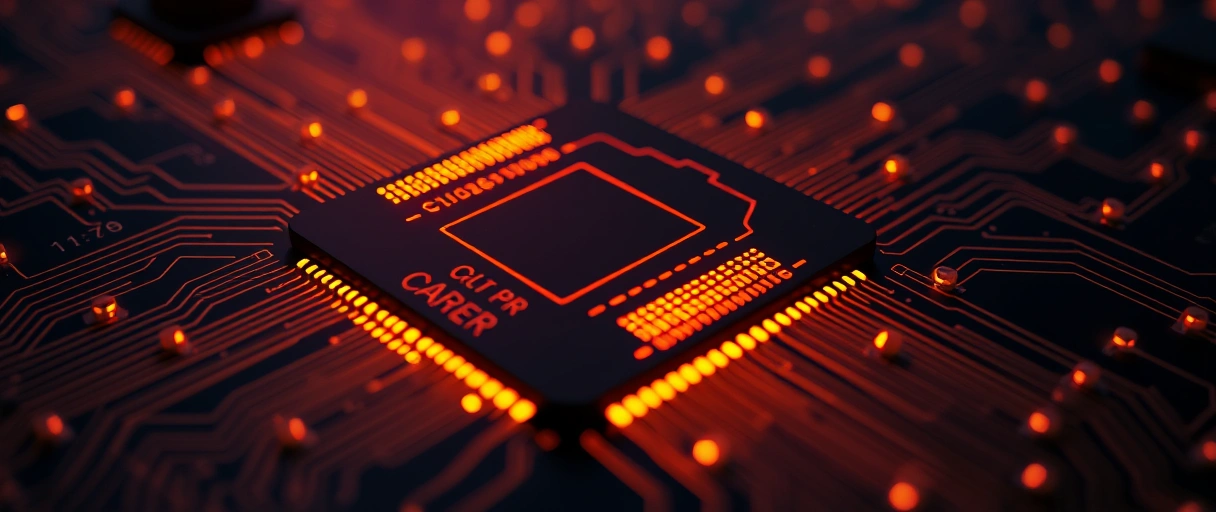
- Lift the socket retention arm to open the load plate on an Intel LGA board, or open the AM5 socket lever on an AMD board.
- Match the gold triangle on the CPU corner to the triangle marked on the socket corner.
- Lower the CPU straight down into the socket without sliding it sideways.
- Close the load plate and press the retention arm back down, which requires firm pressure as the plate locks.
- Confirm the CPU sits flat with no gap before continuing.
Intel LGA sockets place the pins in the motherboard socket, while AMD AM4 places the pins on the CPU and AM5 moves them to the socket. The full procedure for either platform appears in the guide to how to install a CPU, and the socket match itself is set when choosing a motherboard.

How Do You Install the RAM in the Correct Slots?
Placing the RAM in the channel-correct slots enables dual-channel mode for full memory bandwidth. Two modules in the wrong slots run in single channel and lower memory performance.
- Open the retention clips at the ends of the DIMM slots.
- Check the motherboard manual for the dual-channel slots, usually slots 2 and 4 counting from the CPU.
- Align the notch on each module with the ridge in the slot, since the notch fits one direction only.
- Press each module straight down until both clips snap closed against the module.
- Confirm both modules sit level with the clips fully engaged.
Two 16GB DDR5 modules in the A2 and B2 slots give 32GB in dual channel on most boards. Desktop memory installs vertically, unlike the angled SO-DIMM modules used to upgrade laptop RAM.
How Do You Mount the CPU Cooler and Apply Thermal Paste?
Mounting the cooler with thermal paste between the CPU and cooler base transfers heat away from the processor. The CPU overheats and throttles within seconds without a mounted cooler.
- Install the cooler backplate and standoffs that match the socket, following the cooler manual.
- Apply a pea-sized dot of thermal paste to the center of the CPU heat spreader if the cooler base has none pre-applied.
- Lower the cooler straight onto the CPU so the paste spreads evenly under pressure.
- Tighten the mounting screws in a diagonal cross pattern a few turns at a time to seat the cooler level.
- Connect the CPU fan or pump cable to the CPU_FAN header on the motherboard.
A pea-sized amount of thermal paste covers the contact area without overflowing. The full method, including spread patterns and quantity, appears in the guide to applying thermal paste.
How Do You Mount the Power Supply and Motherboard in the Case?
Mounting the motherboard on brass standoffs raises the board off the case tray and prevents an electrical short. Fit the power supply first, since its bracket is easiest to reach before the board is in place.
- Mount the power supply in the case bracket with the fan facing the case vent, then secure it with four screws.
- Install the rear I/O shield into the case opening if the motherboard does not have an integrated one.
- Count the mounting holes on the motherboard and install a brass standoff in each matching case position, removing any extras.
- Lower the motherboard onto the standoffs so the rear ports align with the I/O shield, then drive a screw into each standoff hand-tight in a cross pattern.
- Confirm no standoff sits under an area of the board without a screw hole.
A standoff under a non-hole area is the most common cause of a build that powers on but does not display, a fault the guide to fix fans that spin with no boot covers in detail.
How Do You Install Storage and the Graphics Card?
Install M.2 storage before the graphics card, because the card often covers the M.2 slots. The drive gives the operating system a place to write to, and the GPU connects to the fastest lanes on the board.
- Remove the M.2 slot screw and any heatsink, insert the M.2 SSD at a shallow angle, press the far end down, and secure it with the standoff screw or tool-less latch.
- Mount a 2.5-inch SATA SSD in a drive bay and connect a SATA data cable to the motherboard and a SATA power cable from the PSU.
- Remove the case expansion slot covers that line up with the top PCIe x16 slot and open the slot retention latch.
- Align the graphics card with the slot and press straight down until the latch clicks, then secure the bracket to the case with the slot-cover screws.
- Leave the PCIe and 12V-2×6 power cables disconnected until you reach the cabling step.
The graphics card carries its own detailed procedure in the guide to installing a graphics card, the full drive setup including formatting in Windows appears in how to install an SSD, and the interface trade-off is compared in M.2 versus SATA storage.
How Do You Connect the Power and Front-Panel Cables?
Connecting the 24-pin, EPS, and GPU power cables delivers power to the motherboard, CPU, and graphics card, and the front-panel header wires the case buttons. A missing EPS connector is the most common reason a complete build fails to boot.
- Connect the 24-pin ATX cable to the long power connector on the motherboard edge.
- Connect the 8-pin EPS cable to the CPU power socket at the top of the motherboard near the CPU.
- Connect the PCIe or 12V-2×6 power cable to the graphics card until it clicks fully home at both ends, keeping the cable straight for the first 35 mm.
- Connect the front-panel headers for the power button, reset button, power LED, and HDD LED using the motherboard manual diagram, then add the front USB and audio cables.
- Route the cables behind the motherboard tray through the case cutouts, secure them with the supplied ties, and confirm every connector is fully seated before closing the side panels.
The wattage and connector count depend on the parts, a calculation the guide to choosing a power supply explains. A modular power supply supplies only the cables the build uses, which reduces clutter behind the motherboard tray.
How Do You Complete the First Boot and Enable XMP or EXPO?
Entering the BIOS on first boot confirms the build posts and enables the memory profile so the RAM runs at its rated speed. Memory defaults to a slower JEDEC speed until the XMP or EXPO profile is enabled.
- Connect the monitor cable to the graphics card output, not the motherboard, when a discrete GPU is installed.
- Switch the power supply on, press the case power button, and watch for fans to spin and the display to show the manufacturer logo.
- Press Delete or F2 during boot to enter the BIOS or UEFI setup.
- Confirm the BIOS lists the correct CPU, the full RAM capacity, and the storage drive.
- Enable the XMP profile on an Intel board or the EXPO profile on an AMD board, then save and exit.
A build that shows fans spinning but no display points to a reseating check on the RAM, GPU, and EPS cable, the exact path the guide to fix fans that spin with no boot follows.
What Are the Most Common PC Build Mistakes?
A first build fails most often from a small number of repeated errors. The mistakes below are ordered by how frequently they prevent a successful boot.
- Forgetting the EPS CPU power cable. The 8-pin EPS connector powers the CPU, and the system shows no display without it.
- Installing a standoff under a non-hole area. An extra standoff shorts the motherboard against the case tray.
- Placing RAM in the wrong slots. Two modules in adjacent slots run in single channel and may fail to post on some boards.
- Plugging the monitor into the motherboard. A discrete GPU outputs only from its own ports when integrated graphics are unused.
- Half-seating the 12V-2×6 GPU connector. A connector left short or bent at the plug runs hot and can melt under load.
- Forcing a connector. A connector that resists is misaligned, and forcing it bends pins or breaks the latch.
Last Thoughts on Building a PC
Building a PC follows a fixed order that turns separate components into a system that posts and runs at full speed. Installing the CPU, cooler, and RAM on the motherboard first, then mounting the board on correct standoffs, then adding the power supply, graphics card, and storage, produces a clean and bootable build. Connecting the EPS CPU cable and enabling the XMP or EXPO profile resolves the two errors that most often hold back a first build, and seating the 12V-2×6 GPU connector fully is the one step that matters most on current high-power cards.
Component selection precedes assembly, so the guides to picking gaming PC parts and choosing a power supply set the foundation for a compatible parts list. The full set of step-by-step builds, including individual component installs, is collected in the PC tutorials hub.
Key Takeaways:
- Build outside the case first: install the CPU, cooler, and RAM on the motherboard before mounting it.
- Match the socket and RAM type, since the motherboard sets which CPU and memory the build accepts.
- Use the channel-correct RAM slots, usually slots 2 and 4, to enable dual channel.
- Connect the 8-pin EPS cable, because the system will not post without CPU power.
- Check standoff placement, as a misplaced standoff shorts the board and prevents boot.
- Seat the 12V-2×6 GPU connector until it clicks, and enable XMP or EXPO so RAM runs at its rated speed.
Frequently Asked Questions (FAQs)
How long does it take to build a PC?
A first PC build takes 2 to 4 hours. Experienced builders complete a standard assembly in about 1 hour. Cable management and the first BIOS configuration add the most time.
What order do you build a PC in?
Install the CPU, cooler, and RAM on the motherboard first, then mount the motherboard in the case. Add the power supply, graphics card, and storage, connect the power and front-panel cables, then complete the first boot.
Do you need thermal paste when building a PC?
Thermal paste is required between the CPU and cooler. Many coolers ship with paste pre-applied to the base. Apply a pea-sized dot to the CPU only when the cooler base is bare.
Why does my new PC turn on but show no display?
Fans spinning with no display usually means unseated RAM, an unseated GPU, or a missing 8-pin EPS CPU power cable. Reseat the memory and graphics card, and confirm the EPS cable is connected.
How do I seat the 12V-2×6 GPU power connector safely?
Push the connector in until it clicks at both ends and the latch engages, then confirm no gap remains. Keep the cable straight for the first 35 mm before any bend, and re-check the seating after the first few gaming sessions.
Do I need an antistatic wrist strap to build a PC?
A wrist strap clipped to bare metal is the most reliable way to prevent electrostatic discharge. If you do not have one, touch the unpainted metal case frame often and keep the power supply switched off and unplugged so the chassis stays grounded.
About the author

Nizam Ud DeenFounder and Tech Blogger
Muhammad Nizam Ud Deen Usman is the founder of theCoreiTech and the author of The Local SEO Cosmos. He has worked in search since 2014 as an SEO consultant for eCommerce stores and local businesses, specialising in eCommerce SEO, local SEO and technical SEO, and runs SEO Academy and the SEO Community from Multan, Pakistan. He also founded ORM Digital Solutions, a digital agency serving medium and large businesses, and holds a degree from the University of Education, Lahore (Multan Campus). Plerdy lists him among its Best 20+ SEO Experts in Pakistan. Nizam started theCoreiTech in 2012 to make computers easier to understand and use for everyone. More of his work is at nizamuddeen.com.
