
You create a bootable USB drive by writing an operating system image to an 8GB or larger USB stick with a tool that adds a boot loader, so the firmware can start an installer from the drive instead of the internal disk. For Windows, the Media Creation Tool downloads the image and writes it in one step, while Rufus writes a downloaded ISO and lets you set the partition scheme (GPT for UEFI, MBR for Legacy) and even bypass the Windows 11 hardware checks. For Linux images, balenaEtcher flashes a single ISO and Ventoy holds several ISO files on one drive. A plain file copy does not work, because the boot loader and boot sector are missing, and the process erases the whole stick.
What You Need Before You Start
Creating a bootable USB drive requires an 8GB or larger USB stick and either the Media Creation Tool or an operating system ISO. The items needed to build the drive are listed below, in the order each is used:
- An 8GB or larger USB drive holds the installation files and is fully erased during creation.
- The Media Creation Tool or an ISO file supplies the image, with the tool downloading the Windows image itself.
- A writing tool such as Rufus, balenaEtcher, or Ventoy adds the boot loader a file copy cannot.
- A backup of anything on the USB drive, since the process erases the entire stick with no recovery.
- A reliable internet connection to download the image, which is roughly 5GB to 6GB for Windows.
A bootable USB drive is the foundation for installing an operating system, so this guide is the reference the install Windows 11 guide and the clean install of Windows guide both point to. A USB drive smaller than 8GB cannot hold the Windows image, and a drive already holding data needs that data copied off first.
What Is a Bootable USB Drive?
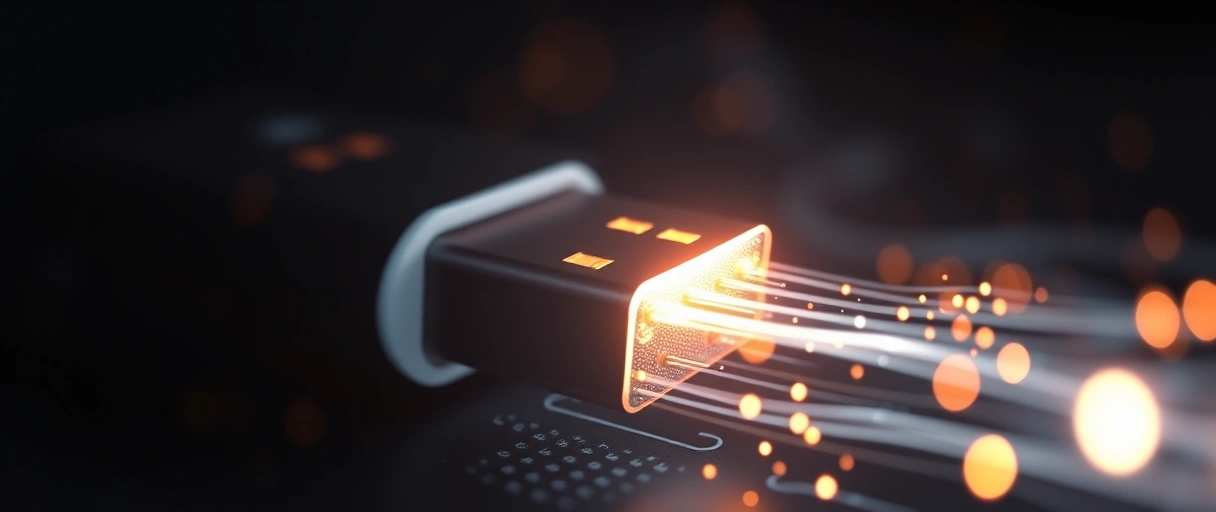
A bootable USB drive is a USB stick that contains a boot loader and installation files, letting the firmware start an operating system installer from the drive instead of the internal disk. The firmware reads the drive’s boot sector and loads the setup environment directly from the USB. A bootable USB drive holds three required elements:
- A boot loader tells the firmware the drive is bootable and starts the setup environment.
- The installation files contain the operating system image the setup process writes to the target drive.
- A partition scheme sets the drive as GPT for UEFI systems or MBR for older Legacy systems.
A standard file copy of an ISO to a USB drive does not create a bootable drive, because the boot sector and partition scheme are missing. The Media Creation Tool, Rufus, and Ventoy all write the boot loader and partition the drive correctly, which a simple drag-and-drop copy cannot. How the firmware locates and loads a boot device connects to the overview of what an operating system is and how it starts.
Which Tool Should You Use?
The right tool depends on what you are writing and whether you need one image or several on the drive. Four tools cover almost every case, and each has a clear best use:
Media Creation Tool
Rufus
balenaEtcher
Ventoy
For a one-time Windows install, the Media Creation Tool or Rufus is the standard choice. The two Windows methods below cover the most common task, and Ventoy and balenaEtcher follow for multi-image and Linux use.
Method A: Create the USB With the Media Creation Tool
The Media Creation Tool builds a bootable Windows USB drive by downloading the image and writing it in one step. Microsoft’s tool downloads the current Windows version and formats the USB drive into bootable installation media without a separate ISO. Follow these steps:
- Download the Media Creation Tool from Microsoft’s official Windows 10 or Windows 11 download page.
- Insert an 8GB or larger USB drive, accepting that the tool erases all existing files on it.
- Run the tool and accept the license terms, then choose “Create installation media for another PC”.
- Select the language and edition, choose USB flash drive, and pick the drive, then let the tool download and write the files.
The Media Creation Tool sets the correct partition scheme automatically, producing a drive that boots on both UEFI and Legacy systems without further configuration. The tool downloads roughly 5GB to 6GB, so the process takes time on a slow connection. One limit: it builds media for x64 PCs only, not Arm-based devices. The finished drive boots directly from the firmware boot menu.

Method B: Create the USB With Rufus and an ISO
Rufus builds a bootable USB drive from a downloaded Windows ISO and exposes the partition scheme settings for UEFI or Legacy systems. Rufus writes any Windows ISO to a USB drive and lets the partition scheme be set manually, which suits systems that need a specific boot mode. Follow these steps:
- Download the Windows ISO from Microsoft’s official site, then download Rufus from its official page.
- Insert the 8GB or larger USB drive and open Rufus, which detects the drive automatically.
- Select the ISO with the Select button, then choose the partition scheme: GPT for UEFI systems or MBR for Legacy BIOS systems.
- Click Start and confirm the erase warning, then wait for Rufus to write the bootable drive.
The partition scheme determines which systems the drive boots. GPT with the UEFI target boots modern systems and is required for a Windows 11 installation, while MBR with the BIOS or Legacy target boots older systems. Choosing the wrong scheme produces a drive the firmware does not recognize, so matching the scheme to the target system is the critical Rufus setting.
| Setting | UEFI System (modern) | Legacy BIOS System (older) |
|---|---|---|
| Partition scheme | GPT | MBR |
| Target system | UEFI (non-CSM) | BIOS or UEFI-CSM |
| Secure Boot | Supported | Not used |
| Required for Windows 11 | Yes | No |
How Do You Verify the Drive Boots?
Verifying the drive boots confirms the USB was created correctly before you rely on it for an installation. A drive that fails to appear in the boot menu or loads back into the existing operating system was not written correctly. Test it in the firmware boot menu with these steps:
- Insert the finished USB drive and restart the PC, then press the boot menu key such as F12, F10, or Esc.
- Confirm the USB drive appears in the boot menu, listed under both a UEFI entry and a legacy entry on most systems.
- Select the UEFI USB entry for a modern installation, since this matches the GPT partition scheme.
- Confirm the setup screen loads, which proves the drive boots and the installation files are intact.
A drive that loads the Windows setup language screen is verified and ready for an installation. A drive missing from the boot menu was likely written with the wrong partition scheme, so recreating it in Rufus with the matching GPT or MBR setting resolves the failure. The verified drive then serves the Windows 11 installation procedure and the clean install procedure.
How Do You Boot Multiple ISO Files With Ventoy?
Ventoy creates a USB drive that holds several ISO files and presents a boot menu to choose between them, removing the need to rewrite the drive for each image. Ventoy installs once to the USB drive, after which ISO files copy onto the drive normally and appear in a selection menu at boot. Follow these steps:

- Download Ventoy from its official page and run the installer against the target USB drive.
- Install Ventoy to the drive once, which formats the drive and adds the Ventoy boot loader.
- Copy one or more ISO files onto the drive using normal file copy, since Ventoy reads them directly.
- Boot from the drive and select an image from the Ventoy menu that appears at startup.
Ventoy suits a drive that holds multiple Windows versions, Linux distributions, or recovery tools at once, and it boots ISO, WIM, IMG, and VHD files on both BIOS and UEFI systems, including Secure Boot. A Ventoy drive does not require rewriting to swap images, since new files copy onto the existing drive. The single-image methods remain the standard choice for a one-time Windows installation. To put two systems on one machine instead of one drive, see the dual boot Windows and Linux guide.
What Are the Common Mistakes to Avoid?
A bootable USB drive fails when the partition scheme is wrong or the drive is too small. The mistakes that produce a non-booting drive are listed below:
- Copying the ISO instead of writing it leaves no boot loader, so the firmware never sees the drive as bootable.
- Choosing the wrong partition scheme in Rufus produces a drive the target firmware does not recognize.
- Using a drive under 8GB cannot hold the Windows image, halting the creation process.
- Forgetting to back up the drive loses any files on it, since creation erases the entire stick.
- Selecting the legacy entry on a UEFI system can mismatch the GPT scheme, so the UEFI entry matches a GPT drive.
A drive that fails to boot most often has a partition scheme that does not match the target system, which recreating it with the correct GPT or MBR setting resolves. Matching the partition scheme to the firmware and using an 8GB or larger drive prevents the two most common failures. For the full range of related procedures, the PC tutorials hub collects every install, repair, and setup walkthrough in one place.
Last Thoughts on Creating a Bootable USB
Creating a bootable USB drive produces the installation media every operating system install depends on, so the process centers on the right tool and the right partition scheme. Gather an 8GB or larger drive and an ISO or the Media Creation Tool, build the drive with the Media Creation Tool or with Rufus using GPT for UEFI or MBR for Legacy, verify the drive boots, and reach for balenaEtcher for a single Linux image or Ventoy when several ISO files belong on one drive. Match the partition scheme to the firmware and back up the stick first, and the two most common failures never happen.
The verified drive then drives the install Windows 11 guide and the clean install of Windows guide. Readers can continue with the dual boot Windows and Linux guide or browse the PC tutorials hub for related procedures.
Key Takeaways:
- Use an 8GB or larger USB drive, since the image fills the drive and creation erases all existing files.
- The Media Creation Tool downloads and writes Windows in one step, setting the partition scheme automatically.
- Rufus writes a downloaded ISO, exposes the GPT or MBR setting, and can bypass the Windows 11 hardware checks.
- Match the partition scheme to the target system, using GPT and UEFI for Windows 11.
- Use balenaEtcher for a single Linux image and Ventoy to hold several ISO files on one drive.
- Verify the drive boots through the firmware boot menu before relying on it for an installation.
Frequently Asked Questions (FAQs)
How do I create a bootable USB drive for Windows?
Use the Media Creation Tool, which downloads Windows and writes it to an 8GB or larger USB drive in one step, or use Rufus with a downloaded ISO and the correct partition scheme. Both write a boot loader, which a plain file copy does not.
What size USB drive do I need for a bootable drive?
An 8GB or larger USB drive holds the Windows installation image, which is roughly 5GB to 6GB. Creation erases the entire drive, so copy off any files you want to keep before you start.
Should I choose GPT or MBR in Rufus?
Choose GPT with the UEFI target for modern systems, which a Windows 11 install requires. Choose MBR with the BIOS or Legacy target for older systems. Match the scheme to the firmware of the PC you are installing on.
Can I just copy the ISO file to the USB drive?
No. A drag-and-drop file copy leaves no boot loader and no boot sector, so the firmware does not see the drive as bootable. The Media Creation Tool, Rufus, and Ventoy each write the boot loader and partition the drive correctly.
Can Rufus bypass the Windows 11 TPM and Secure Boot requirements?
Yes. When you write a Windows 11 ISO, Rufus shows a customization dialog that can remove the checks for TPM 2.0, Secure Boot, and 4GB of RAM, and skip the Microsoft account requirement. This lets Windows 11 install on hardware Microsoft does not officially support.
Which tool should I use to flash a Linux ISO?
Use balenaEtcher for a single Linux image or a Raspberry Pi card, since it runs on Windows, macOS, and Linux and verifies the write. Use Ventoy if you want several Linux ISO files on one drive without reflashing for each one.
About the author

Nizam Ud DeenFounder and Tech Blogger
Muhammad Nizam Ud Deen Usman is the founder of theCoreiTech and the author of The Local SEO Cosmos. He has worked in search since 2014 as an SEO consultant for eCommerce stores and local businesses, specialising in eCommerce SEO, local SEO and technical SEO, and runs SEO Academy and the SEO Community from Multan, Pakistan. He also founded ORM Digital Solutions, a digital agency serving medium and large businesses, and holds a degree from the University of Education, Lahore (Multan Campus). Plerdy lists him among its Best 20+ SEO Experts in Pakistan. Nizam started theCoreiTech in 2012 to make computers easier to understand and use for everyone. More of his work is at nizamuddeen.com.
