
A PC that powers on but shows no display almost always has the monitor on the wrong input or the video cable in the wrong port, so start by selecting the correct input and moving the cable to the graphics card, not the motherboard. When the fans spin and the lights come on but the screen reports no signal, power has reached the system and the fault sits in the display path or the power-on self-test, not the power supply. Work from the easiest checks outward: input and cable, then the cable in the graphics card, then reseat the card and its PCIe power, reseat and test one RAM stick, and read the motherboard debug LEDs or beep codes to name the stalled component.
What Causes a PC to Turn On With No Display?
A PC turns on but shows no display because the monitor receives no usable signal, most often from the wrong input, a cable in the wrong port, or a graphics card that is not seated. Power reaches the board, so the fault sits in the display path or the power-on self-test (POST) rather than the power supply. The causes group into four areas, listed most frequent first:
The fact that matters is that the system has power: the fans spin and the lights show, which separates this from a fully dead machine covered in the fix for a computer that will not turn on. A case where the fans spin up and then nothing else happens, with no POST at all, is closer to the fix for fans that spin with no boot. If the monitor message itself is the issue, the fix for a monitor that shows no signal covers it from the display side.
| Symptom | Most Likely Cause |
|---|---|
| Monitor says “No Signal” | Wrong input source or dead cable |
| Black screen, cable in motherboard port | Discrete GPU installed, plug into the GPU |
| GPU fans spin, no image | GPU not seated or missing PCIe power |
| No image, repeating beep pattern | Bad or unseated RAM |
| Debug LED stuck on VGA or CPU | Graphics card or processor fault |
| Long black screen on a new build | DDR5 memory training (wait it out) |
How Do You Fix No Display When the PC Is On?
Work from the easiest, no-tools checks to the deeper hardware tests, stopping as soon as the image returns. Each step states what it resolves so you can skip the ones that do not apply to your build.
- Select the correct monitor input and test the cable. Press the monitor’s source button and cycle through HDMI 1, HDMI 2, and DisplayPort until it matches the connected port. Reseat the cable at both ends, swap in a known-good cable, and test the monitor on a laptop or console to confirm the monitor and cable work.
- Move the cable to the graphics card, not the motherboard. When a discrete card is installed, the motherboard video ports are usually disabled. Plug the monitor into the card’s outputs, which sit on the horizontal slot lower on the rear of the case, below the motherboard ports grouped with the USB connectors.
- Reseat the graphics card and connect its PCIe power. Power off and unplug, release the slot latch and bracket screw, then reseat the card in the top x16 slot until the latch clicks. Connect the 6-pin or 8-pin PCIe power cables, and confirm they are PCIe, not the CPU EPS plug, which does not fit correctly.
- Reseat and test one RAM stick. Open the retention clips and reinsert a single known-good stick in the slot the manual names, usually A2 (the second from the CPU). Try to POST, then test each module and slot in turn. Clean oxidized contacts with a soft eraser if a stick is detected intermittently.
- Wait out DDR5 memory training on a new build. A first boot, or the first boot after a BIOS or memory change, can hold the screen black for several minutes with no beeps while the board trains the memory. Give it the time before deeper testing, and enable Memory Context Restore on AMD AM5 boards to shorten later boots.
- Read the debug LEDs or beep codes. The LED that stays lit, CPU, DRAM, VGA, or BOOT, names where the POST stopped. If the board has no LEDs, fit a case speaker and count the beeps against the manual: one long and two short beeps commonly signals a graphics fault. Act on the named stage.
- Test onboard graphics or another card, then clear the CMOS. If the CPU has integrated graphics, remove the discrete card and use the motherboard port to confirm the card has failed; otherwise swap in a known-good card. If output is still missing, clear the CMOS with the jumper or by removing the CR2032 battery to reset a blocking BIOS setting or overclock.
Plug Into the Graphics Card, Not the Motherboard
Plugging the monitor into the graphics card rather than the motherboard resolves a no-signal screen on any system with a discrete graphics card installed. When a dedicated card is present, the motherboard’s video ports are usually switched off, so a cable in the motherboard port produces no image even though everything else is correct. This single mistake accounts for a large share of no-signal reports on newly built systems.
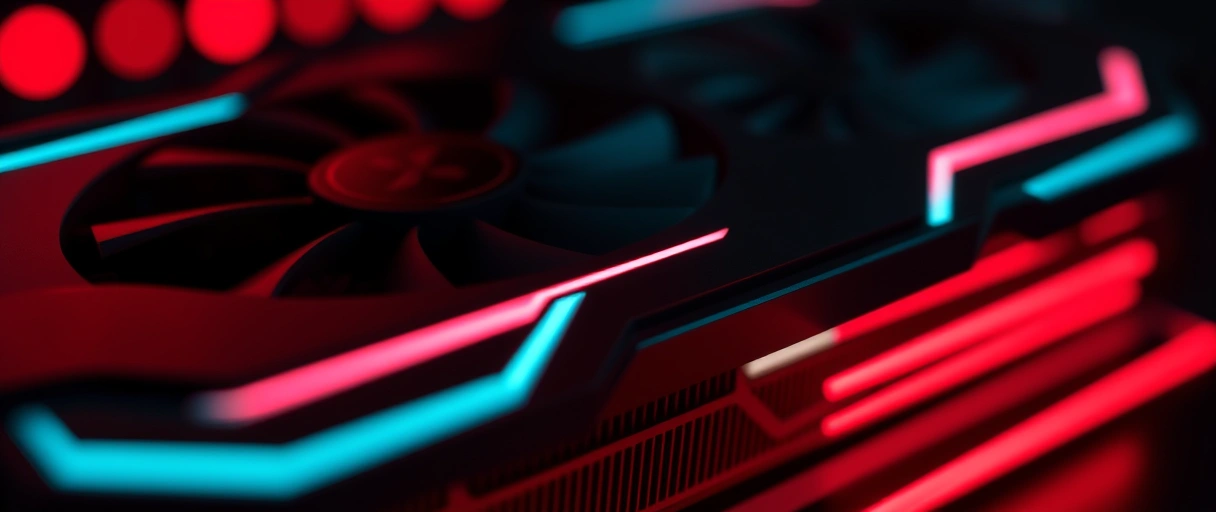
The motherboard ports work only when the processor has integrated graphics and no discrete card overrides them, which is why most gaming systems output solely through the card. If you intend to use the motherboard outputs alongside the card, that has to be enabled in BIOS first.
Reseat the Graphics Card and Connect PCIe Power
Reseating the graphics card and connecting its PCIe power resolves a no-signal screen caused by a card that lost slot contact or lacks supplemental power. A card that vibrated loose or sits on one edge makes no contact, and a card without its required 6-pin or 8-pin PCIe cables runs its fans but cannot initialize.
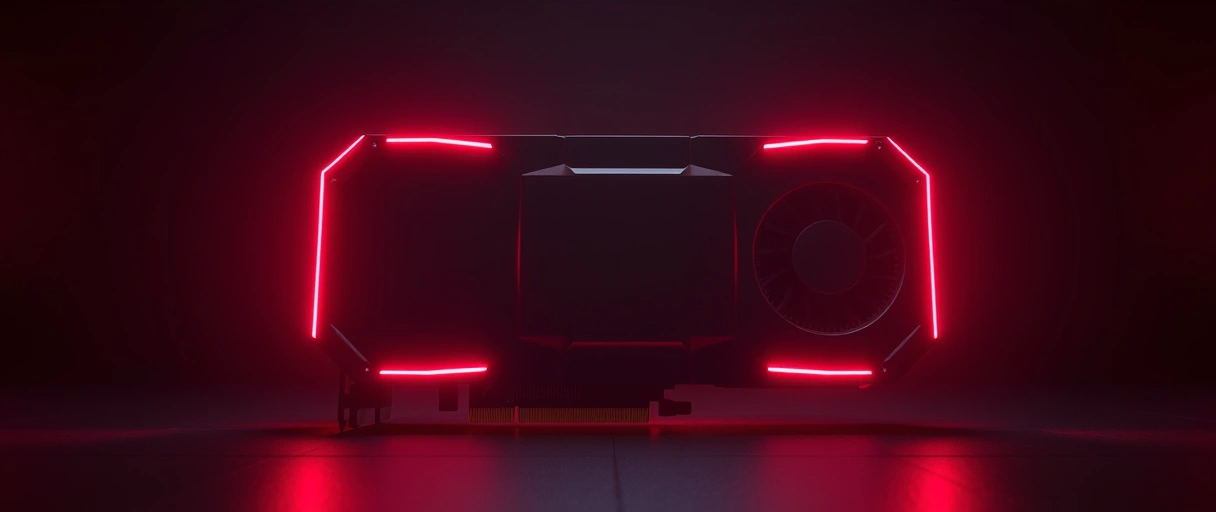
Power off and unplug the system, release the PCIe slot latch and the rear bracket screw, and reseat the card firmly in the top x16 slot until the latch clicks. Connect the PCIe power cables, and confirm they are the graphics-card PCIe plugs rather than the 8-pin CPU EPS connector, which looks similar but does not fit the card correctly. A card whose fans spin without an image almost always lacks its power or sits unseated, so confirm both together.
Reseat and Test One RAM Stick
Reseating and testing one RAM stick resolves a no-display condition caused by memory that fails the power-on self-test. A system that cannot detect working memory halts before video output, often with a beep code or a lit DRAM debug LED. Testing a single known-good stick isolates a faulty module or slot.

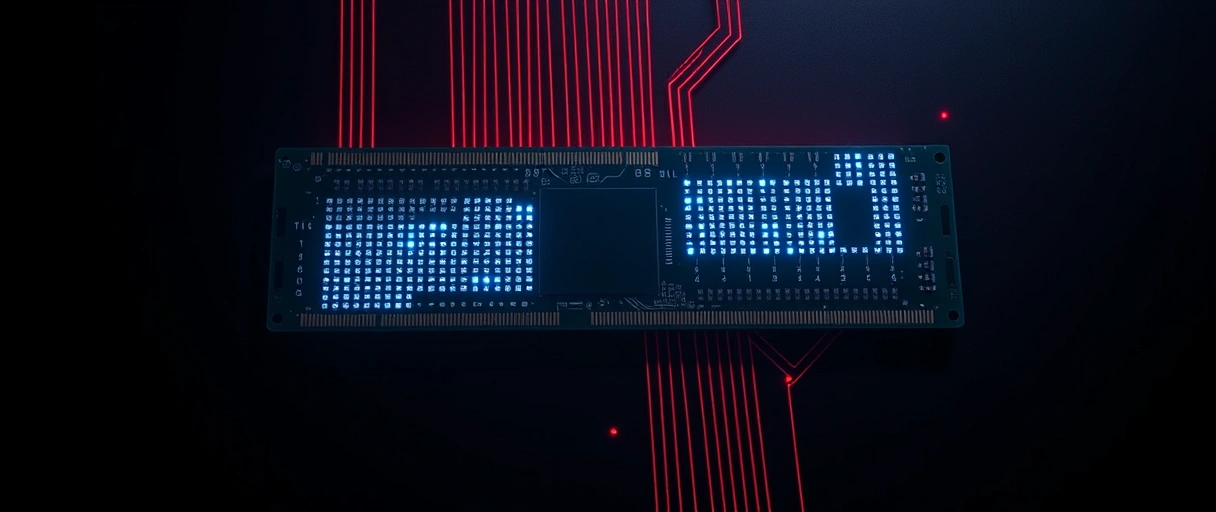
Power off, open the retention clips, and reinsert one stick in the primary slot the motherboard manual names, usually the second slot from the CPU (A2 or DIMM_A2). Attempt to POST with that single stick, then test each module and slot in turn to find the failing part. On a DDR5 board, allow for a longer first boot while the memory trains. The correct slot order for single and dual-channel memory appears in the guide to installing RAM, which prevents a board from failing to POST with modules in the wrong slots.
Read Motherboard Debug LEDs and Beep Codes
Reading the debug LEDs and beep codes identifies the exact component that halts the power-on self-test before display output. The motherboard signals the failed stage through a row of debug LEDs labeled CPU, DRAM, VGA, and BOOT, or through a speaker beep code if the board has no LEDs.
- CPU: the processor or its power is the problem, often a loose EPS cable or, on AMD AM5, bent socket pins.
- DRAM: memory failed to initialize. Reseat the modules or test one stick in the A2 slot.
- VGA: no graphics output was detected. Reseat the card and connect its PCIe power, the most common trigger.
- BOOT: hardware passed and the board cannot find a bootable drive, which is a storage problem rather than a no-signal fault.
MSI calls these EZ Debug LEDs, ASUS calls them Q-LED, and Gigabyte calls them Status LEDs, but they work the same way: the LED that stays lit names where the POST stopped. If the board has no LEDs, fit a case speaker and count the beep pattern against the manual, where one long and two short beeps commonly signals a graphics fault. A board that hangs on the BOOT LED has passed hardware initialization and reached a storage problem closer to a missing bootable device.
Try Onboard Graphics or Another Card, Then Clear the CMOS
Switching the video source to integrated graphics or another card isolates a failed GPU, and clearing the CMOS clears a blocking BIOS setting. If the processor includes integrated graphics, remove the discrete card and connect the monitor to the motherboard port; an image there confirms the card has failed. If the processor has no integrated graphics, install a known-good card instead, since a spare card is then the only available test.
When output is still missing, clear the CMOS to restore safe defaults: unplug the power supply and press the case power button to drain residual charge, then use the CLR_CMOS jumper or button for ten seconds, or remove the CR2032 battery for several minutes if the board has no jumper. Reconnect power and boot, then re-enter BIOS to confirm the primary display and memory settings before re-applying any overclock. A system that displays only after a CMOS clear had a firmware setting, often an unstable memory profile, blocking output.
Last Thoughts on a PC That Turns On With No Display
A PC that turns on but shows no display already has power, so the fix targets the display path and the power-on self-test rather than the power supply. Work outward from the cheapest checks: confirm the monitor input and cable, move the cable to the graphics card rather than the motherboard, reseat the card and connect its PCIe power, reseat and test one RAM stick, and only then open the case for deeper work. On a new DDR5 build, give the first boot a few minutes to train the memory before assuming a fault.
When the easy checks fail, the motherboard debug LEDs and beep codes name the stalled stage and save the guesswork, pointing straight at the graphics card, memory, or processor. This guide sits alongside the related fixes in the hub of common PC problems, which connects it to the computer that will not turn on, fans that spin with no boot, and a monitor stuck on no signal.
Key Takeaways:
- Spinning fans with a black screen mean the system has power and the fault is in the display path or POST, not the power supply.
- Confirm the monitor input and cable first, since the wrong source or a dead cable is the most common no-signal cause.
- Plug into the graphics card, not the motherboard, because a discrete card disables the board’s video ports.
- Reseat the graphics card and connect its PCIe power, as a card without power spins its fans but outputs nothing.
- Reseat and test one RAM stick in the A2 slot, because failed memory halts the POST before video.
- A long black screen on a new DDR5 build is usually memory training, so wait before troubleshooting.
- Debug LEDs (CPU, DRAM, VGA, BOOT) and beep codes name the stalled component for a precise fix.
Frequently Asked Questions (FAQs)
Why does my PC turn on but the monitor stays black?
A black screen while the fans spin means the system has power but no usable signal reaches the monitor. The three most common causes are the wrong monitor input, a dead or wrong cable, and a cable plugged into the motherboard instead of the graphics card. Check those first before opening the case.
Should I plug the monitor into the graphics card or the motherboard?
Plug into the graphics card whenever a discrete card is installed, because the card normally disables the motherboard video ports. The card outputs sit on the horizontal slot lower on the rear of the case, below the motherboard ports that are grouped with the USB connectors.
Why do the GPU fans spin but no image appears?
A graphics card whose fans spin without an image usually lacks its supplemental PCIe power or sits unseated in the slot. Power off, reseat the card in the top x16 slot until the latch clicks, and connect the 6-pin or 8-pin PCIe power cables. Confirm they are PCIe cables, not the CPU EPS plug.
Can bad RAM cause a PC to show no display?
Yes. Memory that fails the power-on self-test halts the system before it can output video, often with a beep code or a lit DRAM debug LED. Reseat the modules, then test one known-good stick in the slot the manual names, usually A2, to isolate a faulty module or slot.
What do the motherboard debug LEDs mean?
The debug LEDs labeled CPU, DRAM, VGA, and BOOT light in sequence as the power-on self-test checks each stage, and the one that stays lit names the component that stalled. MSI calls them EZ Debug LEDs, ASUS calls them Q-LED, and Gigabyte calls them Status LEDs. A stuck VGA light points to the graphics card, DRAM to memory.
Is a long black screen on a new DDR5 build a fault?
Not always. DDR5 systems run a one-time memory training pass on the first boot or after a settings change, which can hold the screen black with no beeps for up to several minutes. Wait before troubleshooting. On AMD AM5 boards, enabling Memory Context Restore in BIOS reuses the trained values and shortens later boots.
About the author

Nizam Ud DeenFounder and Tech Blogger
Muhammad Nizam Ud Deen Usman is the founder of theCoreiTech and the author of The Local SEO Cosmos. He has worked in search since 2014 as an SEO consultant for eCommerce stores and local businesses, specialising in eCommerce SEO, local SEO and technical SEO, and runs SEO Academy and the SEO Community from Multan, Pakistan. He also founded ORM Digital Solutions, a digital agency serving medium and large businesses, and holds a degree from the University of Education, Lahore (Multan Campus). Plerdy lists him among its Best 20+ SEO Experts in Pakistan. Nizam started theCoreiTech in 2012 to make computers easier to understand and use for everyone. More of his work is at nizamuddeen.com.
