
First, plug the device into a different port directly on the PC, not a hub, then disable USB selective suspend in Power Options. A faulty port or cable and the selective suspend power setting cause most cases of USB device not recognized. A rear port wired straight to the motherboard removes the hub and front-panel header as variables, and turning off selective suspend stops Windows from powering down an idle port and failing to wake it. If that does not fix it, the cause is a corrupted driver, outdated chipset support, a full power-cycle is needed, or the device itself is faulty.
What Causes USB Device Not Recognized?
A USB device is not recognized because Windows cannot establish communication with the device, most commonly from a faulty port or cable, the USB selective suspend power setting dropping the port, or a corrupted USB controller driver. The fault sits between the device and the USB controller, not in Windows as a whole. The four causes below run from most common to least:
The symptom narrows the cause: a device that works on another port points to a dead port, while a device that fails on every port and every PC points to the device or cable. The symptom table below maps each pattern to its likely cause, and the differences between USB 2.0, USB 3.0, and USB-C ports and their power limits appear in the related hardware guides.
| Symptom | Most Likely Cause |
|---|---|
| Device works on another port | Faulty or dead USB port |
| Device works on another computer | Driver, power, or port on this system |
| Device fails on every port and system | Faulty device or cable |
| Device drops after sleep or idle | USB selective suspend power setting |
| High-draw device fails on a hub | Insufficient power, unpowered hub |
How Do You Fix USB Device Not Recognized?
You fix it by working from the port outward: swap the port, then the power setting, then the driver, then the hardware. Run the steps in order and stop at the one that restores the device, since each later step targets a deeper cause.
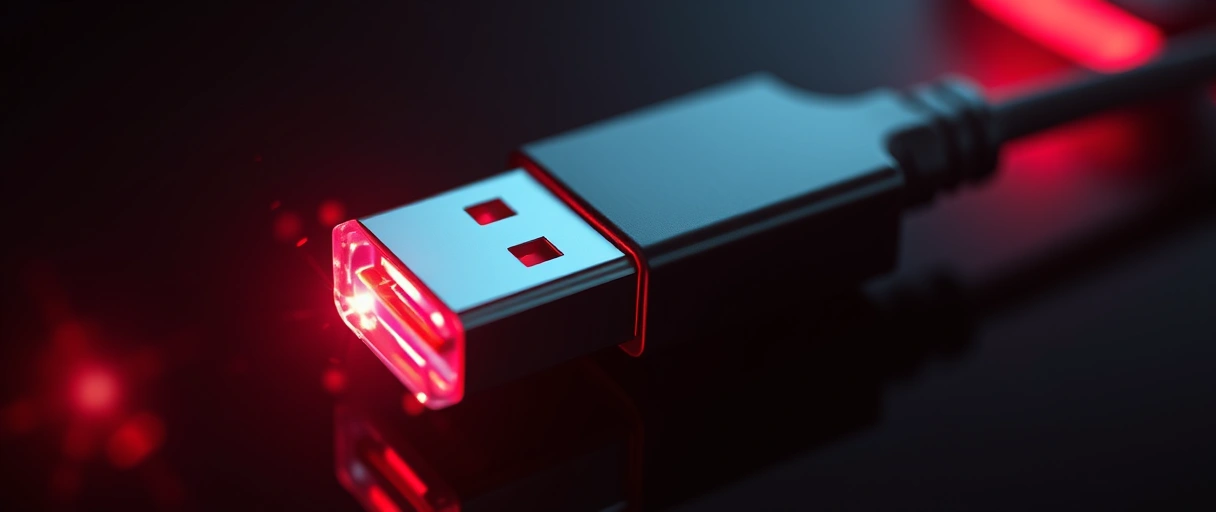
- Try another port directly on the PC. Move the device to a rear port wired to the motherboard and skip any hub, since a dead port or a loose front-panel header is the most common cause.
- Disable USB selective suspend. In Power Options, open Change advanced power settings, expand USB settings, and set USB selective suspend to Disabled for both On battery and Plugged in.
- Uninstall the device and USB root hubs, then rescan. In Device Manager, uninstall the unknown device and the USB Root Hub entries, then choose Scan for hardware changes or restart so Windows rebuilds the controllers.
- Update the chipset and USB drivers. Download the Intel or AMD chipset package from your motherboard or laptop maker, install it, and restart to restore correct host-controller support.
- Do a full power-cycle. Shut down fully, unplug the power cable, hold the power button about 30 seconds to drain residual charge, then boot. This clears a stuck controller state a restart leaves behind.
- Test the device on another PC. If it fails everywhere on another computer too, the device or its cable is faulty and needs replacing rather than more software fixes.
For the deeper driver step, an Unknown USB Device entry with a yellow warning in Device Manager marks the device that failed to enumerate, and reinstalling the controllers usually clears it. The chipset update below restores correct host-controller support when USB 3.0 or USB-C ports are unreliable.

A high-draw device such as an external drive or a webcam can also exceed the current one port supplies, so connect it through a powered hub if it works elsewhere but not here. If a keyboard or mouse is the device that fails, the input-specific checks in the fix for a keyboard not working and the fix for a mouse not working add steps beyond these, and a drive that is recognized but missing a letter is covered in the fix for a hard drive not detected.
Last Thoughts on USB Device Not Recognized
USB device not recognized is a connection, power, or driver problem, so the fix moves from the port outward: try another port directly on the PC, disable USB selective suspend, uninstall and rescan the USB controllers, update the chipset drivers, do a full power-cycle, and test the device on another PC. Disabling selective suspend and reinstalling the controllers clears most cases that are not a dead port or a bad cable, and the symptom table separates a port fault from a device fault before you start.
A USB device that fails everywhere on another computer is faulty hardware rather than a Windows problem, which ends the troubleshooting at replacement. For related hardware faults, the hub of common PC problems connects this fix to the rest of the troubleshooting set.
Key Takeaways:


- Try another port directly on the PC first, using a rear motherboard port and no hub, since a faulty or dead port is the most common cause.
- Disable USB selective suspend in Power Options when a device drops out after sleep or idle.
- Uninstall the device and USB root hubs, then rescan, to clear a corrupted controller driver and rebuild the USB stack.
- Update the chipset and USB drivers from the manufacturer to restore correct host-controller support.
- Do a full power-cycle, draining residual charge, to clear a stuck controller state a restart leaves behind.
- Test the device on another PC; if it fails there too, the device or cable is faulty and needs replacing.
Frequently Asked Questions (FAQs)
Why does Windows say USB device not recognized?
Windows reports USB device not recognized when it cannot communicate with the device, most often from a faulty port or cable, the USB selective suspend power setting dropping the port, or a corrupted USB controller driver. The fault sits between the device and the controller, not in Windows as a whole.
How do I fix a USB device not recognized error?
Plug the device into a rear port directly on the PC, not a hub, then disable USB selective suspend in Power Options. If it still fails, uninstall the device and the USB root hubs in Device Manager and rescan, update the chipset drivers, and do a full power-cycle. Test the device on another PC to confirm it is not faulty.
Why does my USB device keep disconnecting after sleep?
A device that drops after sleep or idle is usually suspended by the USB selective suspend setting, which powers down idle ports and sometimes fails to wake them. Set USB selective suspend to Disabled in Power Options under USB settings for both On battery and Plugged in, then restart.
Why does reinstalling USB controllers fix the error?
A corrupted USB controller driver stops Windows from enumerating the device. Uninstalling the controllers and root hubs in Device Manager and restarting forces Windows to rebuild the USB stack cleanly, which clears the bad driver state and re-detects the device.
Can a bad cable cause USB not recognized?
Yes. A USB cable with a broken internal data wire still carries power but no data, which produces the unrecognized error while the device may still light up or charge. Swap in a known-good cable to rule it out before blaming the device.
How do I do a full power-cycle to fix USB?
Shut the PC down fully, not restart, then unplug the power cable and hold the power button for about 30 seconds to drain residual charge from the board. Reconnect power and boot. This clears a stuck USB controller state that a normal restart leaves in place, especially with fast startup enabled.
About the author

Nizam Ud DeenFounder and Tech Blogger
Muhammad Nizam Ud Deen Usman is the founder of theCoreiTech and the author of The Local SEO Cosmos. He has worked in search since 2014 as an SEO consultant for eCommerce stores and local businesses, specialising in eCommerce SEO, local SEO and technical SEO, and runs SEO Academy and the SEO Community from Multan, Pakistan. He also founded ORM Digital Solutions, a digital agency serving medium and large businesses, and holds a degree from the University of Education, Lahore (Multan Campus). Plerdy lists him among its Best 20+ SEO Experts in Pakistan. Nizam started theCoreiTech in 2012 to make computers easier to understand and use for everyone. More of his work is at nizamuddeen.com.
