
First check whether the drive appears in BIOS, then in Disk Management, because that one fact splits the problem in two. If the drive is missing from BIOS it is a hardware or cable fault: reseat the SATA data and power cables, try another port and a known-good cable, and listen for spin-up. If BIOS sees it but Windows does not, the drive almost always just needs to be initialized and given a drive letter in Disk Management. A drive that is silent on a known-good power lead, or that clicks repeatedly, has most likely failed.
Why Is My Hard Drive Not Detected?
A hard drive goes undetected for one of four reasons, and where the drive disappears tells you which one you are facing. A drive missing from BIOS points to a physical or cable problem; a drive that BIOS sees but Windows does not is usually a software step you have not done yet.
The same logic separates a missing mechanical drive from a missing solid-state drive. If you are chasing an SSD rather than a spinning disk, the steps differ slightly, and fixing an SSD not showing up covers them. If the drive you lost is the one Windows boots from, the symptom is usually a no bootable device error at startup instead.
How Do You Fix a Hard Drive Not Detected?
Work through these steps in order, because each one rules out a cause before you reach for the next. Power the computer fully off and unplug it from the wall before you open the case.
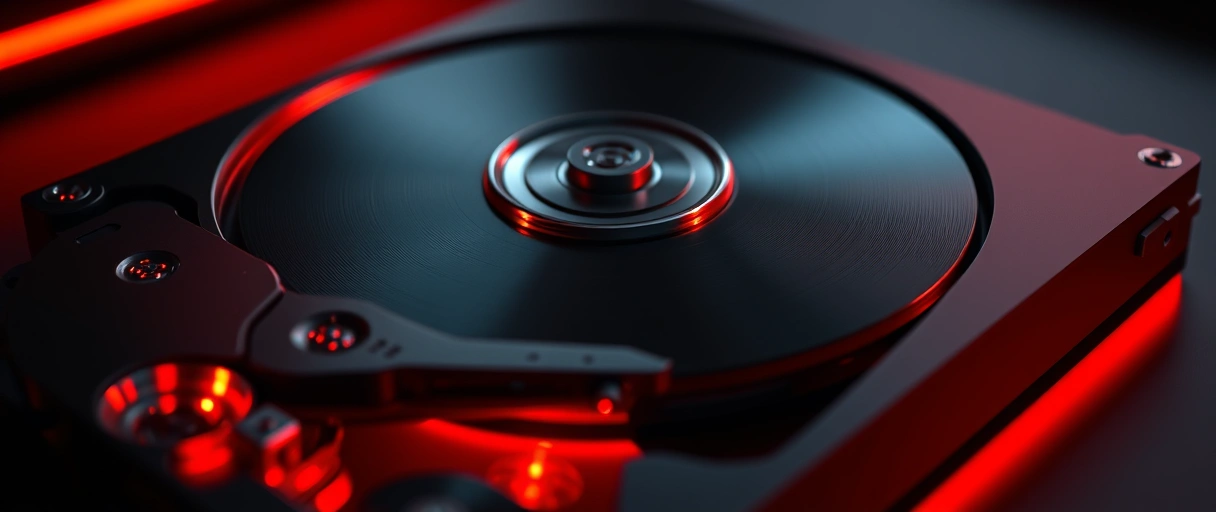
- Check BIOS detection first. Restart, press the BIOS or UEFI key (often Del, F2, or F10), and look at the storage or boot list. Whether the drive is listed here decides everything that follows: in BIOS means a software fix, absent from BIOS means hardware.
- Reseat the SATA data and power cables. Unplug both ends of the SATA data cable and the power lead at the drive, then press each back until it clicks. A loose connector is the single most common cause of a drive that vanishes.
- Try another port and another cable. Move the data cable to a different motherboard SATA port and swap in a known-good cable. This rules out a dead port and a faulty cable in one step.
- Initialize the disk and assign a drive letter. If BIOS sees the drive but Windows does not, open Disk Management. Bring the disk Online if it is Offline, initialize it (use GPT) if it reads Not Initialized, then right-click the volume, choose Change Drive Letter and Paths, and assign a letter.
- Listen for spin-up. With power connected, a healthy 3.5-inch drive spins up with a faint hum and vibration you can feel. Silence on a known-good power lead, or repeated clicking, points to a dead or failing drive.
- Test the drive on another PC. Connect it to a second computer, or use a USB-to-SATA adapter or powered dock. If it is detected elsewhere, the fault is your ports, cables, or settings; if it is detected nowhere, the drive itself has failed.
If the drive shows in BIOS but Windows still refuses it after you initialize and assign a letter, the storage controller driver is the next suspect. The same approach applies when a removable drive will not mount, which fixing a USB device not recognized walks through in detail.
What If the Storage Controller Mode or Driver Is the Problem?
When BIOS lists the drive but Windows will not, a wrong controller mode or a missing driver is often the cause.
- Controller mode: changing the SATA mode between AHCI, IDE, and RAID in BIOS can make Windows lose a drive that worked under the old mode. If the drive vanished right after you changed this, set it back rather than changing it further.
- Storage driver: open Device Manager, expand Storage controllers, and update the driver, or install the chipset and Intel RST or AMD storage driver from your motherboard maker. A stale driver can hide a drive Windows can otherwise reach.
- Offline policy: a secondary drive can be set Offline by Windows after a controller change. Disk Management shows this clearly, and the fix is a right-click and Online.
How Do You Know If the Drive Has Failed?
If the drive is detected nowhere, or its health data is bad, the drive itself is the problem. The clearest signals are sound and SMART data.
- Listen: a healthy drive spins up quietly. No sound at all on a known-good power lead, or repeated clicking and beeping, means the motor or heads have failed.
- Read SMART: run CrystalDiskInfo. A Good rating is fine; a Caution or Bad rating, or any Reallocated, Current Pending, or Uncorrectable sector count above zero, means the drive is degrading.
- Act on it: a failing drive can still be detected intermittently. Back up anything you can reach immediately, then replace the drive rather than trusting it.
Last Thoughts on a Hard Drive Not Detected
A hard drive that is not detected is rarely a mystery once you find where it disappears. Check BIOS first: if the drive is not listed there, the fault is physical, so reseat the SATA data and power cables, try another port and a known-good cable, and listen for spin-up. If BIOS sees the drive but Windows does not, you are almost always one step from done, because the drive usually just needs to be brought Online, initialized, and given a drive letter in Disk Management.
When none of that brings the drive back, the evidence is pointing at the drive itself, and silence or clicking with a Bad SMART rating confirms it. A detection fault is one of the most common storage problems, and it sits alongside the rest in the guide to common PC problems, which links the related symptoms and their fixes.
Key Takeaways:
- Check BIOS first: a drive missing from BIOS is a hardware or cable fault, while a drive in BIOS but not Windows is a software fix.
- A loose or faulty SATA data or power cable is the most common cause, so reseat both ends before anything else.
- Try another SATA port and a known-good cable to rule out a dead port and a bad cable in one step.
- A new or wiped drive that BIOS sees just needs to be initialized and assigned a drive letter in Disk Management.
- Changing the storage controller mode between AHCI, IDE, and RAID can make Windows lose a drive, so set it back if a drive vanished after that change.
- Silence on a known-good power lead, repeated clicking, or a Bad SMART rating means the drive has failed and should be replaced.
Frequently Asked Questions (FAQs)
Why is my hard drive not being detected?
A hard drive is usually not detected because of a loose or faulty SATA data or power cable, a disabled or dead motherboard port, a brand-new drive that has not been initialized yet, or a drive that has physically failed. Checking whether the drive appears in BIOS tells you which group the fault is in.
My hard drive is in BIOS but not in Windows. What do I do?
A drive that BIOS sees but Windows does not is almost always a software step, not a hardware fault. Open Disk Management, bring the disk Online if it is marked Offline, initialize it if it reads Not Initialized, then right-click the volume and use Change Drive Letter and Paths to assign a letter so it shows in File Explorer.
How do I know if my hard drive has failed?
A failed drive often makes no sound at all when powered, or makes repeated clicking or beeping as the heads fail to seek. Run CrystalDiskInfo and check the health status: a Bad rating, or any Reallocated, Current Pending, or Uncorrectable sector count climbing above zero, means you should back up and replace the drive.
Can a SATA cable stop a hard drive from being detected?
Yes. A loose, kinked, or damaged SATA data cable is one of the most common reasons a drive disappears, and it can stop the drive from showing in BIOS or in Windows. Reseat both ends, and if the drive still does not appear, swap in a known-good SATA cable before assuming the drive is faulty.
Should I change the SATA mode in BIOS to fix detection?
Only with care. Switching the storage controller mode between AHCI, IDE, and RAID can make Windows lose a drive that worked under the previous mode, and can cause a boot drive to fail to load. If a drive vanished right after you changed this setting, set it back to what it was rather than changing it further.
How can I tell if the problem is the drive or the computer?
Connect the drive to a second computer, either inside the case or through a USB-to-SATA adapter or powered dock. If the drive is detected on the other machine, the fault is with your original ports, cables, or settings; if it is not detected anywhere, the drive itself has failed.
About the author

Nizam Ud DeenFounder and Tech Blogger
Muhammad Nizam Ud Deen Usman is the founder of theCoreiTech and the author of The Local SEO Cosmos. He has worked in search since 2014 as an SEO consultant for eCommerce stores and local businesses, specialising in eCommerce SEO, local SEO and technical SEO, and runs SEO Academy and the SEO Community from Multan, Pakistan. He also founded ORM Digital Solutions, a digital agency serving medium and large businesses, and holds a degree from the University of Education, Lahore (Multan Campus). Plerdy lists him among its Best 20+ SEO Experts in Pakistan. Nizam started theCoreiTech in 2012 to make computers easier to understand and use for everyone. More of his work is at nizamuddeen.com.
