
This guide helps a buyer choose a desktop computer by explaining the form factors, components, and purchase routes that determine performance and suitability. A desktop’s value depends on the form factor, processor, graphics, memory, storage, ports, and upgradeability, with the right balance set by the work the computer must do and the space available. A prebuilt office machine and a custom workstation draw on the same component list with different priorities.
This guide examines each buying factor, compares prebuilt, custom, and all-in-one routes, matches configurations to use, and closes with approximate budget tiers framed as estimates. The form factor sets the size and upgrade headroom, the processor and graphics set performance, and the purchase route sets how much the buyer configures versus receives ready to run.
What to Consider When Choosing a Desktop Computer
The desktop decision rests on the form factor, processor, graphics, memory, storage, ports, and upgradeability, balanced against the intended use and available space. A buyer matches these to the work the desktop performs rather than maximizing every specification. The factors that shape this decision are listed below:
- The form factor sets the case size, the desk footprint, and how much room exists for components and upgrades.
- The processor determines how fast the desktop completes calculations and runs demanding applications.
- The graphics cover integrated or dedicated rendering, which decides gaming and creative performance.
- The memory and storage determine multitasking capacity and how much data the desktop holds.
- The ports and upgradeability govern connectivity and how far the desktop improves over its life.
A buyer still deciding between a fixed and a portable form can review the laptop versus desktop decision guide first. The amount of memory each workload requires appears in the guidance on how much RAM is needed, which informs the memory choice below.
Which Form Factor Suits the Buyer?
A desktop comes in tower, small-form-factor, all-in-one, and mini form factors, each trading size, performance, and upgradeability differently. The form factor sets the desk footprint and the room available for components. The form factors to weigh are listed below:
- A tower offers the most space for components, cooling, and upgrades, suiting performance and expansion.
- A small-form-factor case reduces footprint while keeping some upgrade room, suiting tight desks.
- An all-in-one integrates the components behind the monitor, saving space at the cost of upgradeability.
- A mini PC occupies the least space for light tasks, with limited or no internal upgrade options.
A tower suits a buyer who values performance and future upgrades, while an all-in-one or mini suits a buyer who values a small footprint and a clean desk. The form factor constrains the components that fit and the cooling available, which in turn limits sustained performance.
Which Processor and Graphics Does the Desktop Need?
The processor sets general performance and the graphics set rendering performance, so a buyer matches both to the heaviest task the desktop must handle. A processor handles calculations and logic, while a graphics card handles 3D rendering and video acceleration. The processor and graphics points are listed below:

- Core count and clock speed set processor performance, with more cores for rendering and high clocks for responsiveness.
- Integrated graphics suit office work and media, handling the display without a separate card.
- A dedicated graphics card is required for gaming, 3D work, and accelerated video editing.
- The processor line spans Intel Core and AMD Ryzen across entry, mid, and premium tiers.
Intel Core and AMD Ryzen processors span entry to premium tiers, while a dedicated graphics card becomes necessary for gaming and 3D work. A buyer selecting a graphics card matches its tier to the workload and display, using the graphics card selection guide for the criteria that separate the options.
How Much Memory and Storage Does a Desktop Need?
A desktop needs enough memory to run its workload and enough storage to hold its files, with 16 GB of RAM and a solid-state drive as a practical baseline for most users. Memory holds active data, while storage holds files and programs permanently. The memory and storage points are listed below:



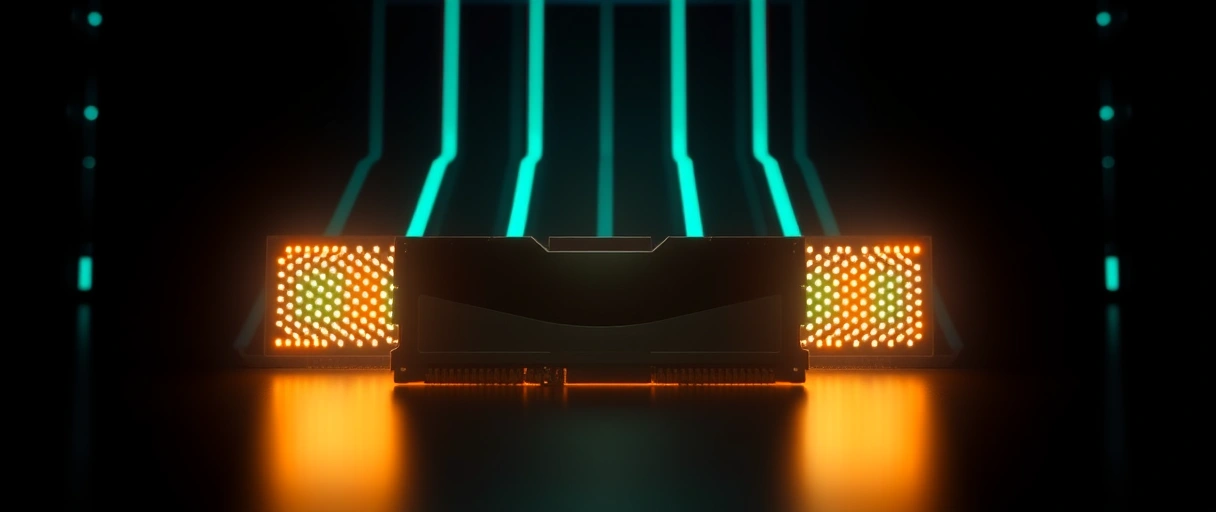
- 8 GB of RAM handles basic office and browsing, while 16 GB suits multitasking and most current software.
- 32 GB of RAM or more serves video editing, 3D rendering, and virtual machines.
- A solid-state drive loads the operating system and applications quickly, improving everyday responsiveness.
- A combination of SSD and hard drive pairs fast access with large, lower-cost capacity for bulk files.
A desktop’s standard slots make memory and storage straightforward to expand later, unlike a laptop. The exact memory figure for each workload appears in the guidance on how much RAM is needed, which separates office, creative, and gaming requirements.
Prebuilt, Custom, or All-in-One?
A desktop is bought prebuilt, assembled custom, or chosen as an all-in-one, each trading configuration control, price, and convenience differently. The purchase route sets how much the buyer configures versus receives ready to run. The purchase routes are listed below:
- A prebuilt desktop arrives assembled and tested, suiting buyers who want a ready system with a warranty.
- A custom build lets the buyer select every component, suiting those who want specific parts and full control.
- An all-in-one integrates the computer and monitor, suiting buyers who prioritize a small footprint.
- Component access differs, since towers allow easy upgrades while all-in-ones restrict internal changes.
Dell, HP, Lenovo, and ASUS supply prebuilt towers and all-in-ones across price tiers, while a custom build assembles individually chosen components. A buyer who wants specific parts and upgrade headroom chooses a tower, prebuilt or custom, over an all-in-one.
Desktop Buying Criteria Table
| Use Case | Form Factor | Processor | Graphics | RAM | Storage |
|---|---|---|---|---|---|
| Office / home | SFF or all-in-one | Entry to mid | Integrated | 8-16 GB | 512 GB SSD |
| Multitasking / business | Tower or SFF | Mid (6-8 cores) | Integrated or entry GPU | 16 GB | 512 GB-1 TB SSD |
| Creative / workstation | Tower | Premium (8+ cores) | Dedicated GPU | 32 GB+ | 1 TB SSD + HDD |
| Gaming | Tower | Mid to premium | Dedicated GPU | 16-32 GB | 1 TB SSD |
Who Should Buy Each Desktop Type
Each desktop type serves a use case, from compact all-in-ones for office work to upgradeable towers for gaming and creative workloads. A buyer matches the type to the work and the space available. The types and their buyers are listed below:
- An all-in-one or mini suits office and home users who value a small footprint over upgrades.
- A small-form-factor tower suits business users who want some upgrade room on a tight desk.
- A full tower suits gamers and creators who need a dedicated graphics card and expansion room.
- A custom build suits buyers who want to select every component for a specific workload.
A buyer choosing a gaming or creative tower weighs the dedicated graphics card most heavily, with selection criteria in the graphics card selection guide. A buyer pairing the desktop with a display can match it using the monitor selection guide.
Approximate Desktop Budget Tiers
Desktop prices fall into entry, mid, and premium tiers, with the figures below approximate and varying by market, brand, and configuration. A buyer treats these ranges as guidance rather than fixed prices. The approximate budget tiers are listed below:
- The entry tier covers integrated graphics, 8 to 16 GB of RAM, and a solid-state drive for office and home use, at the lowest cost.
- The mid tier adds a faster processor, an entry dedicated graphics card, and 16 GB of RAM for multitasking and light gaming.
- The premium tier covers high-core processors, a strong dedicated graphics card, 32 GB or more of RAM, and large storage.
- Component choices shift the price within each tier, since the graphics card and processor drive much of the cost.
These tiers describe relative positioning rather than exact amounts, since prices vary by region, retailer, and component cycle. A buyer compares configurations within a tier to balance the processor, graphics, and memory against the intended use.
Which Ports and Connectivity Does a Desktop Need?
A desktop’s ports and connectivity determine which displays, peripherals, and networks it supports, so a buyer confirms the rear and front connections match the devices in use. The ports decide how monitors, storage, and accessories attach. The connectivity points are listed below:
- Display outputs, such as HDMI and DisplayPort, set how many monitors and at what resolution the desktop drives.
- USB-A and USB-C ports connect keyboards, mice, drives, and accessories, with USB-C carrying high-speed data.
- Wired Ethernet and Wi-Fi connect the desktop to a network, with Ethernet offering a stable connection.
- Audio jacks and front-panel ports ease the connection of headsets and quick-access devices.
A buyer running two monitors confirms the desktop provides enough display outputs of the right type, matched to the monitor selection criteria. A dedicated graphics card supplies its own display outputs, which a buyer uses instead of the motherboard outputs when a graphics card is installed.
How Do Cooling and Power Supply Affect a Desktop?
A desktop’s cooling and power supply set how much sustained performance it holds and how much component headroom it allows, so a buyer weighs both against the processor and graphics tier. Cooling removes heat, while the power supply delivers current to the components. The cooling and power points are listed below:
- Air or liquid cooling removes processor heat, with larger coolers sustaining higher clock speeds under load.
- Case airflow moves intake and exhaust air across the components, preventing heat from limiting performance.
- Power supply wattage must cover the combined draw of the processor and graphics card with headroom.
- An efficiency-rated power supply reduces wasted power and heat under the loads demanding components create.
A desktop with a dedicated graphics card needs sufficient power supply wattage and cooling to sustain performance, since an undersized unit causes instability under load. A buyer choosing an upgradeable tower leaves power and cooling headroom so a stronger graphics card or processor can be added later without replacing the supply or cooler.
Key Takeaways
- The form factor sets the footprint and the room for components and upgrades.
- The processor and graphics set general and rendering performance for the workload.
- 16 GB of RAM and a solid-state drive form a practical baseline, with more for creative work.
- The purchase route trades configuration control, price, and convenience among prebuilt, custom, and all-in-one.
- A tower offers the most upgrade headroom, while an all-in-one saves space.
How do I choose a desktop computer?
Match the form factor, processor, graphics, memory, and storage to the intended use and available space. An office user needs integrated graphics and a compact case, while a gamer or creator needs a dedicated graphics card and a tower.
Is a prebuilt or custom desktop better?
A prebuilt desktop arrives assembled and tested with a warranty, suiting convenience. A custom build lets the buyer select every component for full control. The better route depends on whether the buyer values convenience or configuration.
Do I need a dedicated graphics card in a desktop?
A dedicated graphics card is required for gaming, 3D work, and accelerated video editing. Office work, browsing, and media play run on integrated graphics without a separate card.
How much RAM does a desktop need?
A desktop needs 8 GB of RAM for basic office work, 16 GB for multitasking and most current software, and 32 GB or more for video editing, 3D rendering, and virtual machines.
What is the best form factor for a desktop?
A tower offers the most performance and upgrade room, a small-form-factor case balances size and expansion, and an all-in-one or mini saves space. The best form factor depends on the workload and desk space.
Can you upgrade an all-in-one desktop?
An all-in-one restricts internal upgrades, often allowing only memory or storage changes. A tower allows the processor, graphics card, memory, and storage to be replaced, extending its usable life.
Last Thoughts on How to Choose a Desktop Computer
Choosing a desktop computer resolves to matching the form factor, processor, graphics, memory, and storage to the intended use and space, then selecting a prebuilt, custom, or all-in-one route. An office user needs integrated graphics in a compact case, while a gamer or creator needs a dedicated graphics card in an upgradeable tower.
The budget tiers position relative cost, with exact prices varying by market. Readers can continue with the graphics card buying guide, the laptop versus desktop comparison, the monitor buying guide, or the computer buying hub for related decisions.

