
A bottleneck in gaming is the single component that limits the frame rate, the part that hits full load first while the rest of the system waits on it. A CPU bottleneck happens when the processor cannot prepare frames fast enough, so the graphics card sits below full load. A GPU bottleneck happens when the graphics card runs near 100 percent and the processor has spare capacity. You identify which one you have by watching CPU and GPU usage in an on-screen overlay: GPU near 100 percent means you are GPU bound, which is healthy; a CPU core pegged near 100 percent while GPU usage is low means you are CPU bound. The bottleneck is not fixed. It shifts with resolution, because 1080p leans on the CPU while 4K leans on the GPU.
What Is a Bottleneck in Gaming?
A bottleneck in gaming is the component that limits the frame rate, the part that reaches full load first and holds the frame rate at the level it can sustain while other components wait. In any scene the processor and the graphics card each do part of the work of producing a frame, and the one that finishes last sets the frame rate.
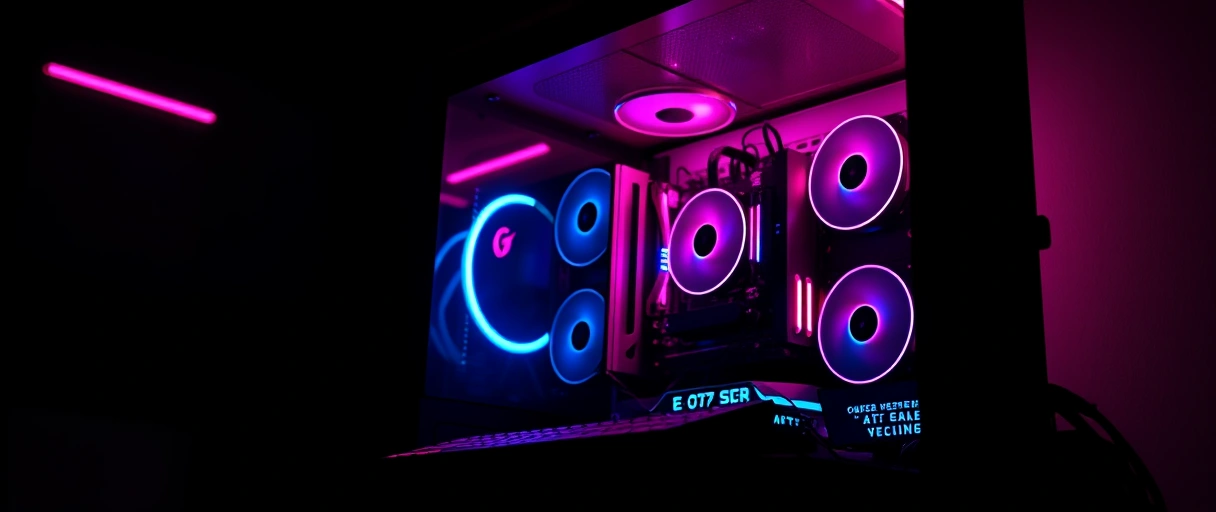
The slower component is the bottleneck, and the faster one runs below its capacity. A bottleneck has three defining traits:
- The limiting component is the one at full load, setting the frame-rate ceiling the rest of the system cannot exceed.
- The idle headroom appears on the other component, which runs below full load because it is waiting on the bottleneck.
- The shifting nature means the bottleneck moves between the processor and graphics card as resolution, settings, and scene change. There is no single permanent bottleneck.
A bottleneck sets the frame-rate ceiling defined in the explanation of FPS in gaming, so identifying it shows which change actually raises that ceiling. When you plan a build, knowing where the limit falls is what drives sensible choices about which gaming PC parts to pick.
CPU Bottleneck vs GPU Bottleneck: How to Tell Them Apart
The two bottlenecks are opposites, and each one has a clear signature in your usage overlay. The cards below show what each looks like and how to spot it in seconds.
One widespread myth is that overall CPU usage must reach 100 percent to prove a CPU bottleneck. That is wrong. Many games lean on only one or two cores, so a single core can be pegged while the total reads 40 or 50 percent. Per-core usage is the figure that matters, which ties back to how work is split across CPU cores and threads.
What Are the Signs of a GPU Bottleneck?
A GPU bottleneck shows as graphics card usage near 100 percent with the processor below full load, most often at a high resolution or with demanding visual settings. The graphics card renders every pixel, so a high resolution or heavy effects push its usage to full load while the processor keeps spare capacity.
A GPU bottleneck is the common and often preferred state in single-player games. It shows three signs:
- GPU usage near 100 percent indicates the graphics card is the limiting component and is running at full capacity.
- CPU usage below full load shows the processor has headroom while the graphics card sets the frame-rate ceiling.
- Frame rate that responds to lower graphics settings confirms the limit, because reducing resolution or effects raises the frame rate.
What Are the Signs of a CPU Bottleneck?
A CPU bottleneck shows as high processor usage on at least one core with the graphics card running below full load, most often at a low resolution, a high refresh target, or in scenes packed with objects. The processor prepares draw calls and runs game logic, so when it cannot keep pace the graphics card waits and the frame rate falls below the card’s capacity. It shows three signs:


- GPU usage below full load while the frame rate is capped indicates the graphics card is waiting on the processor.
- One or more CPU cores near 100 percent shows the processor is the limit, especially in games that lean on a few cores.
- Frame rate that drops in crowded scenes appears where many characters, units, or physics objects raise the processor’s workload.
A CPU bottleneck is common at low resolution and high refresh, where the graphics card renders frames quickly and the processor becomes the limit. The resulting low one-percent lows are among the causes covered in the explanation of what causes FPS drops.
How Do You Diagnose a Bottleneck With a Usage Overlay?
You diagnose a bottleneck by watching CPU and GPU usage during gameplay, because the component running near 100 percent while the other has headroom is the one limiting the frame rate. An overlay shows both figures in real time, and comparing them in a demanding scene reveals the limit. Work through these steps:
- Turn on a usage overlay. MSI Afterburner with RivaTuner Statistics Server is the common free choice. The Xbox Game Bar (Windows plus G), Steam’s in-game performance overlay, or your GPU vendor app all work too.
- Show per-core CPU and total GPU usage. Enable per-core CPU graphs, not just the average, because one pegged core is what reveals a CPU limit a single average can hide.
- Play a genuinely demanding scene. A bottleneck is clearest under load, so read the figures in a busy area or combat, never in a menu or on a loading screen.
- Compare the two figures. GPU near 100 percent with the CPU lower means GPU bound. A CPU core near 100 percent with GPU usage below about 90 percent means CPU bound. Both high and neither pegged means a balanced system with no major bottleneck.
The same tools that report these usage figures also measure frame rate, so the overlay you use to find the bottleneck is the one described in the explanation of FPS in gaming.
How Does Resolution Shift the Bottleneck?
Raising the resolution shifts the bottleneck toward the graphics card, because more pixels add work for the card without raising the processor’s load, and lowering the resolution shifts it back toward the processor. The processor’s work per frame is largely independent of resolution, so changing resolution mainly changes the graphics card’s load. Resolution shifts the bottleneck as follows:
- A higher resolution such as 1440p or 4K raises the graphics card’s load toward full, moving the bottleneck to the GPU. Story games at 4K are GPU bound on almost any system.
- A lower resolution such as 1080p reduces the graphics card’s load, so the processor more often becomes the limit. Competitive titles at 1080p are frequently CPU bound on modern hardware.
- A high refresh target at low resolution makes a CPU bottleneck more likely, because the processor must prepare many more frames per second.
| Sign | CPU Bottleneck | GPU Bottleneck |
|---|---|---|
| GPU usage | Below full load | Near 100 percent |
| CPU usage | A core near 100 percent | Below full load |
| Common resolution | Low (1080p) | High (1440p, 4K) |
| Worst scenes | Crowded, logic-heavy | Visually heavy, high resolution |
| Effect of lower settings | Little frame-rate gain | Frame rate rises |
| Is it healthy? | No, the GPU waits | Yes, the card is fully used |
Because resolution moves the bottleneck, the same hardware can be CPU bound at 1080p and GPU bound at 4K. This is why a frame rate that does not rise when you lower settings points to a processor limit, among the causes in the explanation of what causes FPS drops.
How Do You Reduce a Bottleneck?
You reduce a bottleneck by first identifying the limiting component, then either shifting load away from it or upgrading it, because changing the part that is not the bottleneck gives almost no frame-rate gain. The fix depends on which component is the limit:
- To reduce a CPU bottleneck: raise the resolution to push load onto the graphics card, lower CPU-heavy settings such as draw distance, crowd density, and physics quality, and close background processes to free cores. A faster processor is the lasting fix when a single game stays CPU bound at your target.
- To reduce a GPU bottleneck: lower demanding visual settings or resolution, or turn on upscaling such as DLSS, FSR, or XeSS so the card renders fewer pixels and then reconstructs the image. A stronger graphics card is the hardware fix.
- To prevent it on a new build: match the components to your target so neither is far stronger than the other, which is the core of setting gaming PC upgrade priorities.
A balanced pairing depends on resolution and frame-rate target, since the ideal match differs between a high-refresh 1080p build and a 4K build. Identify the limiting component first, then direct any upgrade there for the largest gain, which is the same logic behind picking gaming PC parts that fit each other.
Last Thoughts on CPU vs GPU Bottleneck
A CPU vs GPU bottleneck is simply the component that limits the frame rate while the other waits. A CPU bottleneck leaves the graphics card below full load with a core pegged, and a GPU bottleneck runs the graphics card near 100 percent with the processor idle. You find which one you have by watching usage in an overlay during a demanding scene, and you should expect the bottleneck to move as you change resolution, because 1080p leans on the CPU while 4K leans on the GPU.
The most useful thing to remember is that a GPU near 100 percent is the goal, not a fault, so chase a healthy GPU bottleneck and only act when a CPU limit holds you back. From there you reduce the limit by shifting load or upgrading the component that is actually the bottleneck. The hub on the PC gaming guide connects this to the wider set of performance topics.
Key Takeaways:
- A bottleneck is the component that limits the frame rate, reaching full load while the other has headroom.
- A GPU bottleneck shows GPU usage near 100 percent and is the healthy, preferred state for most games.
- A CPU bottleneck shows a core near 100 percent with GPU usage low, common at 1080p and high refresh.
- Diagnose with a usage overlay in a demanding scene, and read per-core CPU usage, not just the average.
- Resolution shifts the bottleneck: 1080p leans on the CPU, while 1440p and 4K lean on the GPU.
- Reduce a bottleneck by shifting load or upgrading the limiting component; the other part gives almost no gain.
Frequently Asked Questions (FAQs)
What is a CPU vs GPU bottleneck?
A bottleneck is the component that limits the frame rate while the other component has spare capacity. A CPU bottleneck leaves the graphics card below full load while a processor core maxes out; a GPU bottleneck runs the graphics card near 100 percent while the processor sits idle.
How do I know if my CPU or GPU is the bottleneck?
Turn on a usage overlay and watch a demanding scene. GPU usage near 100 percent with the CPU lower means a GPU bottleneck. A CPU core near 90 to 100 percent while GPU usage stays below about 90 percent means a CPU bottleneck. The CPU does not need to hit 100 percent overall, because a game can max out one or two cores.
Is a CPU or GPU bottleneck worse?
A GPU bottleneck is usually preferred, because it means the graphics card is fully used and frame pacing tends to stay smooth. A CPU bottleneck leaves the graphics card waiting and often causes the low one-percent lows that feel like stutter.
Is 100 percent GPU usage bad while gaming?
No. In games, GPU usage near 100 percent is normal and desirable, because it means the card is delivering all the frames it can. It is not a fault. Graphics cards are built to run at full load, so the only thing to watch is temperature, not the usage figure itself.
Does resolution affect bottlenecks?
Yes. The processor does roughly the same work at any resolution, so a higher resolution such as 1440p or 4K raises only the graphics card’s load and shifts the bottleneck to the GPU. A lower resolution such as 1080p reduces GPU load and makes the processor more likely to be the limit.
How do I fix a CPU bottleneck without upgrading?
Raise the resolution or lower CPU-heavy settings such as draw distance, crowd density, and physics quality, which shifts load to the graphics card. Closing background processes also frees cores. If a single demanding game stays CPU-limited at your target frame rate, a faster processor is the lasting fix.
About the author

Nizam Ud DeenFounder and Tech Blogger
Muhammad Nizam Ud Deen Usman is the founder of theCoreiTech and the author of The Local SEO Cosmos. He has worked in search since 2014 as an SEO consultant for eCommerce stores and local businesses, specialising in eCommerce SEO, local SEO and technical SEO, and runs SEO Academy and the SEO Community from Multan, Pakistan. He also founded ORM Digital Solutions, a digital agency serving medium and large businesses, and holds a degree from the University of Education, Lahore (Multan Campus). Plerdy lists him among its Best 20+ SEO Experts in Pakistan. Nizam started theCoreiTech in 2012 to make computers easier to understand and use for everyone. More of his work is at nizamuddeen.com.
