
Screen flickering is a rapid, repeated flashing of the display image, and the single most common cause is an outdated or incompatible graphics driver. The fastest way to find the real cause is the Task Manager test: press Ctrl+Shift+Esc and watch the screen. If Task Manager flickers too, the fault is the graphics driver, cable, or monitor; if Task Manager stays steady, an application is to blame. From there the fixes are a clean GPU-driver reinstall, a supported refresh rate, a sound cable, and removing or updating a problem app.
Screen flickering is a rapid, repeated flashing or blinking of the display image, and the most common cause is an outdated or incompatible graphics driver. Other frequent causes include a refresh rate the monitor cannot hold, a faulty or loose video cable, an incompatible application, a failing monitor or backlight, and a loose connection. This article explains what causes a flickering screen and gives the step-by-step fixes that stop it.
Each fix names the exact tool to use, including Windows Task Manager, Display settings, Device Manager, Display Driver Uninstaller, and the graphics control panel. A single test in Task Manager separates a driver fault from an application fault, which directs every later step.
The fixes are ordered from the most common and easiest, such as the Task Manager test and the refresh-rate check, to a clean driver reinstall and a cable replacement. Apply the fixes in order and watch the screen after each one, because a single driver, refresh-rate, or cable fault usually accounts for the flicker.
Checked October 2026. The Windows menu paths and the screenshot in this guide were verified on Windows 11 (build 22631) with Intel Iris Xe graphics. Menu names differ slightly on Windows 10.
What Causes Screen Flickering?
Screen flickering is caused by the display losing a stable image signal, either from a software fault in the graphics driver or application, or from a hardware fault in the cable, port, or monitor. The causes below are ranked from most to least common.
Check if Task Manager Flickers Too
Watching whether Task Manager flickers along with the rest of the screen separates a driver fault from an application fault. Windows Task Manager renders independently of most applications. Microsoft documents this same test as the first step in its own flickering troubleshooter.
- Press Ctrl + Shift + Esc to open Task Manager.
- Watch the screen while Task Manager stays open.
- Note that the screen flickers but Task Manager does not, which points to an incompatible application.
- Note that Task Manager flickers along with everything else, which points to the graphics driver, cable, or monitor.
- Use this result to choose between the application fixes and the driver and hardware fixes below.
Microsoft documents this Task Manager test as the standard way to distinguish a display-driver flicker from an app-compatibility flicker, so it directs every later step.
Set the Correct Refresh Rate
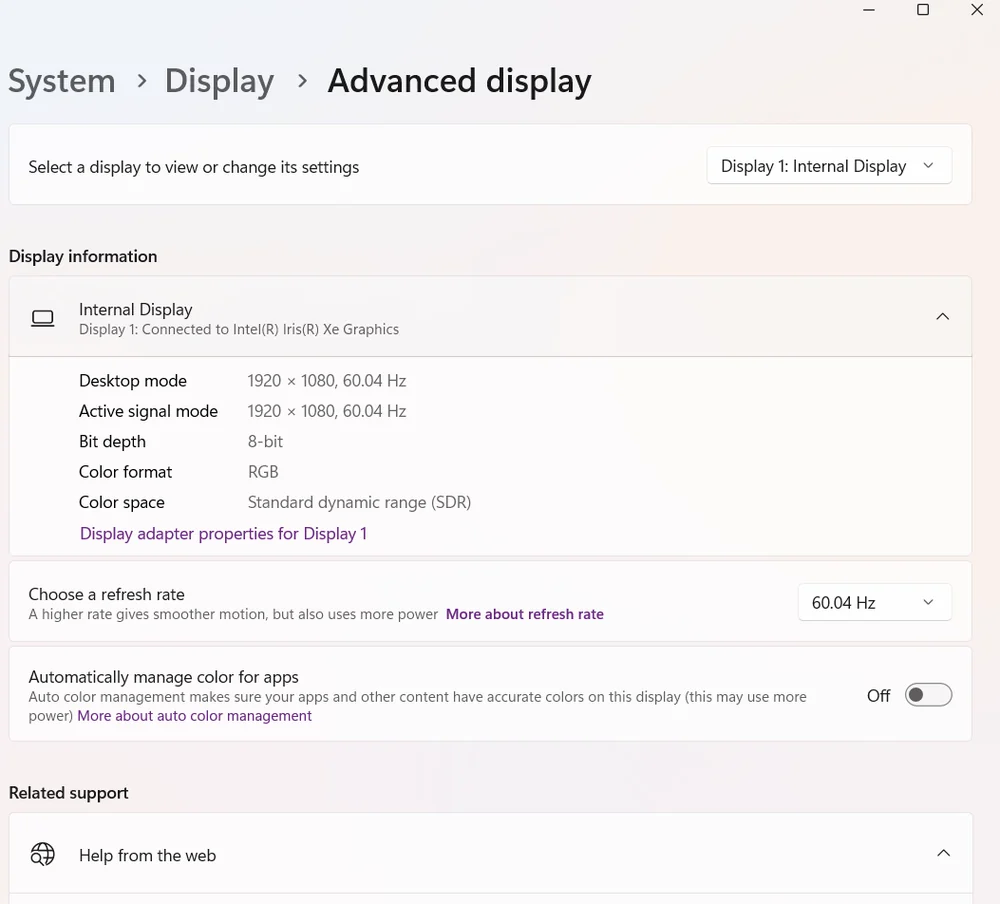
Setting a refresh rate the monitor supports stops a flicker caused by a rate the panel cannot hold. Windows lists the supported rates per display. The path is Settings, System, Display, Advanced display, and the rates offered depend on what the panel reports, as Microsoft sets out.
- Right-click the desktop and open Display settings.
- Scroll to Advanced display and select the affected monitor.
- Choose a refresh rate the monitor supports, such as 60Hz, 120Hz, or 144Hz.
- Apply the change and watch the screen for steadiness.
- Lower the refresh rate one step if a higher rate produces flicker over the connected cable.
A high refresh rate over a cable rated for a lower bandwidth flickers or drops the signal, so the rate and the cable must match. The relationship between rate and motion is explained in the guide to monitor refresh rate.
Clean-Install the Graphics Driver with DDU
A clean install of the graphics driver removes a corrupt or incompatible driver, the leading cause of a whole-screen flicker. Display Driver Uninstaller removes every trace of the previous driver before the new one is installed. If the flicker started right after an update, roll the driver back first through Device Manager, the route Microsoft documents.
- Download the latest graphics driver from the GPU or PC maker before starting.
- Download Display Driver Uninstaller and boot Windows into Safe Mode.
- Run Display Driver Uninstaller and select Clean and restart.
- Install the freshly downloaded driver in normal Windows.
- Restart and confirm the flicker is gone before adding any tuning software.
A clean install avoids the leftover files that a simple driver update leaves behind, which often cause the flicker to persist after an in-place update.
Replace the Video Cable
Replacing the video cable stops an intermittent flicker caused by a failing or loose HDMI or DisplayPort cable. A cable fault drops the signal without visible damage.
- Reseat the existing cable firmly at both the monitor and the graphics card ends.
- Replace the cable with a known-good HDMI or DisplayPort cable rated for the resolution and refresh rate.
- Avoid cables longer than the rated length for the bandwidth in use.
- Move the cable to a different port on the graphics card.
- Watch the screen after each change to see whether the flicker stops.
A high-refresh display needs a cable rated for its bandwidth, so a DisplayPort 1.4 or High Speed HDMI cable is required for high resolutions and rates.
Test Another Port or Monitor
Connecting to a different port or a second monitor confirms whether the fault sits in the port, the cable, or the monitor. Substitution isolates the failing part.
- Move the cable to a different output on the graphics card.
- Connect a known-working monitor to the same computer and watch for flicker.
- Connect the flickering monitor to a different computer or device.
- Confirm whether the flicker follows the monitor or stays with the computer.
- Replace whichever part carries the flicker during the substitution test.
A flicker that follows the monitor to another computer points to a failing panel or backlight, while a flicker that stays with the computer points to the graphics card or its driver.
Uninstall a Problem Application
Removing or updating an incompatible application stops a flicker that affects the screen while Task Manager stays steady. Older or low-level apps redraw the screen in ways that conflict with the display driver.
- Identify the application that was installed or updated before the flicker began.
- Open Settings, then Apps, then Installed apps.
- Update the application to its latest version, which often resolves the conflict.
- Uninstall the application if no compatible update exists.
- Restart and confirm the flicker stops with the application removed.
Antivirus suites, display-tuning utilities, and older desktop apps are common sources of an app-compatibility flicker that Task Manager does not share.
Disable Hardware Acceleration
Disabling hardware acceleration in an affected application stops a flicker that occurs only inside that application. Hardware acceleration hands rendering to the GPU, which can conflict with a driver or display.
- Open the settings of the affected application, such as a browser or office suite.
- Find the System or Performance section.
- Turn off Use hardware acceleration when available.
- Restart the application and watch for flicker.
- Confirm the graphics driver is current if the flicker continues after disabling acceleration.
Hardware acceleration interacts directly with the graphics driver, so a flicker that stops when acceleration is off points back to the driver as the underlying cause to update.
Turn Off Variable Refresh Rate to Stop Brightness Flicker
Disabling variable refresh rate stops a brightness flicker that appears on some panels when the frame rate swings rapidly. FreeSync and G-Sync adjust the refresh rate to match the frame rate, which a few monitors translate into a visible brightness flicker at low or fluctuating frame rates.
- Open the GPU control panel, such as the NVIDIA Control Panel or AMD Software.
- Find the G-Sync or FreeSync setting under the display section.
- Turn off variable refresh rate and apply the change.
- Disable the matching Adaptive-Sync or FreeSync option in the monitor on-screen menu.
- Watch a scene with a fluctuating frame rate, such as a loading screen, to confirm the flicker is gone.
A brightness flicker that appears only in games or during frame-rate swings, and stops when variable refresh rate is off, confirms the sync feature rather than the driver or cable as the cause.
Adjust Brightness and Power Settings on a Laptop
Disabling adaptive brightness and a flicker-reduction power feature stops a flicker that appears when a laptop changes screen brightness automatically. A laptop dims and brightens the panel based on power state and content, which can read as a flicker.
- Open Settings, then System, then Display, and turn off the automatic brightness option.
- Open Power Options and set the same brightness on battery and plugged in.
- Open the Intel Graphics Command Center and disable Display Power Saving Technology or panel self-refresh.
- Confirm the laptop charger is connected, because a low battery state can dim the panel.
- Watch the screen during a power-state change to confirm the flicker stops.
A flicker that appears only on battery, or only when content brightness changes, points to a power-saving brightness feature rather than the graphics driver.
Screen Flickering: Symptoms and Causes
| Symptom | Likely Cause | First Fix to Try |
|---|---|---|
| Whole screen flickers, including Task Manager | Graphics driver or cable fault | Clean-install the GPU driver with DDU |
| Brightness flicker during frame-rate swings | Variable refresh rate on a sensitive panel | Turn off G-Sync or FreeSync |
| Flicker only on laptop battery | Adaptive brightness or power saving | Disable adaptive brightness |
| Screen flickers but Task Manager is steady | Incompatible application | Update or uninstall the app |
| Flicker appears at a high refresh rate | Refresh rate or cable bandwidth | Lower the refresh rate or replace the cable |
| Intermittent flashing when the cable is moved | Loose or failing cable | Reseat and replace the video cable |
| Flicker follows the monitor to another PC | Failing panel or backlight | Replace the monitor |
| Flicker only in one app | Hardware acceleration conflict | Disable hardware acceleration |
Last Thoughts on Screen Flickering
Screen flickering is resolved by first running the Task Manager test to separate a driver fault from an application fault, then applying the matching fix. A clean driver install, a correct refresh rate, and a sound cable resolve most whole-screen flicker, while updating or removing an app resolves an app-only flicker.
Because the refresh rate and cable bandwidth must align, the guide to monitor refresh rate and the reference to types of computer ports clarify which cable a display needs. When the screen drops entirely rather than flickering, the steps to fix a monitor showing no signal and to fix a second monitor not detected apply, and a full index of display faults sits in the hub of common PC problems.
Key Takeaways:
- Run the Task Manager test first. A screen that flickers while Task Manager stays steady points to an application, not the driver.
- Match the refresh rate to the monitor. A rate the panel cannot hold causes a flicker or black flash.
- Clean-install the GPU driver. Display Driver Uninstaller removes the corrupt driver that causes a whole-screen flicker.
- Replace the video cable. A failing HDMI or DisplayPort cable drops the signal and flashes intermittently.
- Test another port or monitor. Substitution isolates whether the fault is the cable, the port, or the panel.
Frequently Asked Questions (FAQs)
Why is my screen flickering?
The most common cause is an outdated or incompatible graphics driver. Open Task Manager: if it flickers too, the driver, cable, or monitor is at fault. If only the screen flickers, an application is the cause.
How do I stop my screen from flickering?
Run the Task Manager test to find the cause, set a supported refresh rate, clean-install the GPU driver with DDU, replace the video cable, and update or remove an incompatible application.
Does Task Manager flicker mean a driver problem?
Yes. If Task Manager flickers along with the screen, the cause is the graphics driver, the cable, or the monitor. If Task Manager stays steady while the screen flickers, an incompatible application is the cause.
Can a cable cause screen flickering?
Yes. A failing or loose HDMI or DisplayPort cable drops the signal and causes intermittent flashing. Reseat the cable at both ends, then replace it with a cable rated for the resolution and refresh rate.
Why does my screen flicker at a high refresh rate?
A refresh rate above what the monitor or cable can hold causes flicker. Lower the rate in Display settings, or use a DisplayPort or High Speed HDMI cable rated for the resolution and rate.
How do I fix flickering in one application?
Disable hardware acceleration in that application’s settings, then update or reinstall the application. A flicker confined to one app, with Task Manager steady, is an app compatibility issue, not a driver fault.
About the author

Nizam Ud DeenFounder and Tech Blogger
Muhammad Nizam Ud Deen Usman is the founder of theCoreiTech and the author of The Local SEO Cosmos. He has worked in search since 2014 as an SEO consultant for eCommerce stores and local businesses, specialising in eCommerce SEO, local SEO and technical SEO, and runs SEO Academy and the SEO Community from Multan, Pakistan. He also founded ORM Digital Solutions, a digital agency serving medium and large businesses, and holds a degree from the University of Education, Lahore (Multan Campus). Plerdy lists him among its Best 20+ SEO Experts in Pakistan. Nizam started theCoreiTech in 2012 to make computers easier to understand and use for everyone. More of his work is at nizamuddeen.com.
